
Frequently Asked Question
Synology Drive file versions use far more space than my documents. How do I reduce them safely?
QUICK ANSWER
Drive keeps recoverable file history in its own database. Its usage can exceed the current folder size, especially on ext4. Adjust retention through Drive Admin Console rather than deleting hidden database folders.
Applies to: Synology Drive Server; menu names differ between Drive 3 and Drive 4.
Work through these checks
- Open Drive Admin Console and check package usage under Settings > General. Compare this with the Team Folder’s current files, shared-folder recycle bin and snapshot usage so you know which layer is consuming space.
- Ask the data owner which restore history must remain. Under Team Folder, select the affected folder and open Versioning. Reduce Maximum Versions and configure regular rotation where available; a lower value permanently removes eligible older recovery points.
- Clean only approved items from the Drive recycle bin using the control provided for your version. A shared folder’s separate DSM recycle bin may still retain deleted files. Preserve required recovery copies elsewhere first.
- Let cleanup finish, then recalculate package usage and compare actual free capacity. Large changing files and ext4 version storage can make a small version count use more capacity than expected.
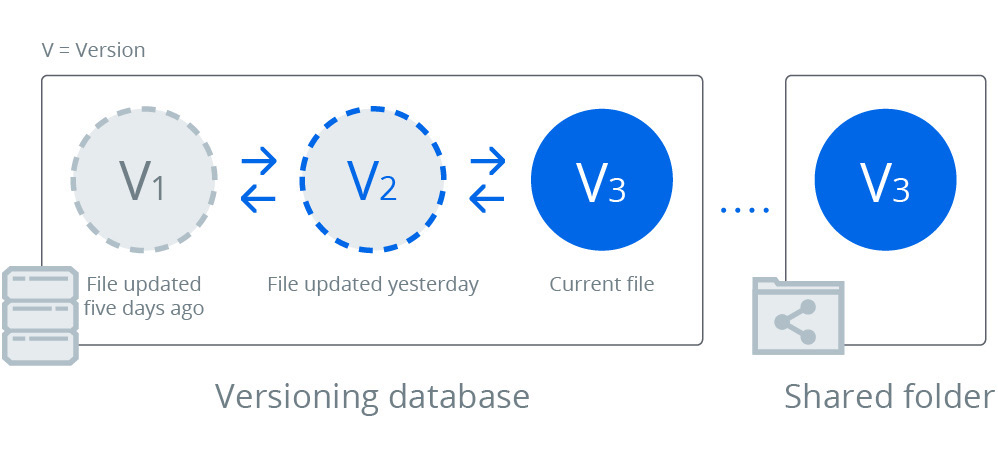
Original Synology white-paper diagram: retained versions are managed separately from the current file. It is a conceptual illustration, not your NAS capacity report. Tap the image to enlarge.
Confirm the result
Confirm that the intended recent versions can still be browsed and a sample restore opens correctly. Record usage after cleanup completes.
Before going further: Never remove @synologydrive or rebuild the database simply to reclaim space. Stop if cleanup errors occur or there is no verified backup.
If you need help
Include these details in your ticket: File system, Drive version, versioning policy and before/after package and volume usage.
Updated 261107