
Frequently Asked Question
Why does my Container Manager app stop with permission denied for a mapped folder?
The container's mount mode and the NAS folder permissions must both allow the access the app needs. First confirm the actual host path and runtime identity.
Applies to: Container Manager on supported Synology models running DSM 7.2 or later. The official example uses Node-RED, but each image can have different user and folder requirements.
Before you start: Back up the app's mapped data before changing its configuration. Do not grant broad write access to an entire production share, run an unfamiliar image as privileged, or apply a recursive chmod 777 command.
Check and resolve
- Open the affected container's log and identify the exact path named in the permission error. Save the error and container image/tag so the diagnosis is tied to the correct app.
- In Container Manager > Container, select the container, open Details and review Settings > Volume Settings. Match each container path to its real NAS folder; similarly named folders are not interchangeable.
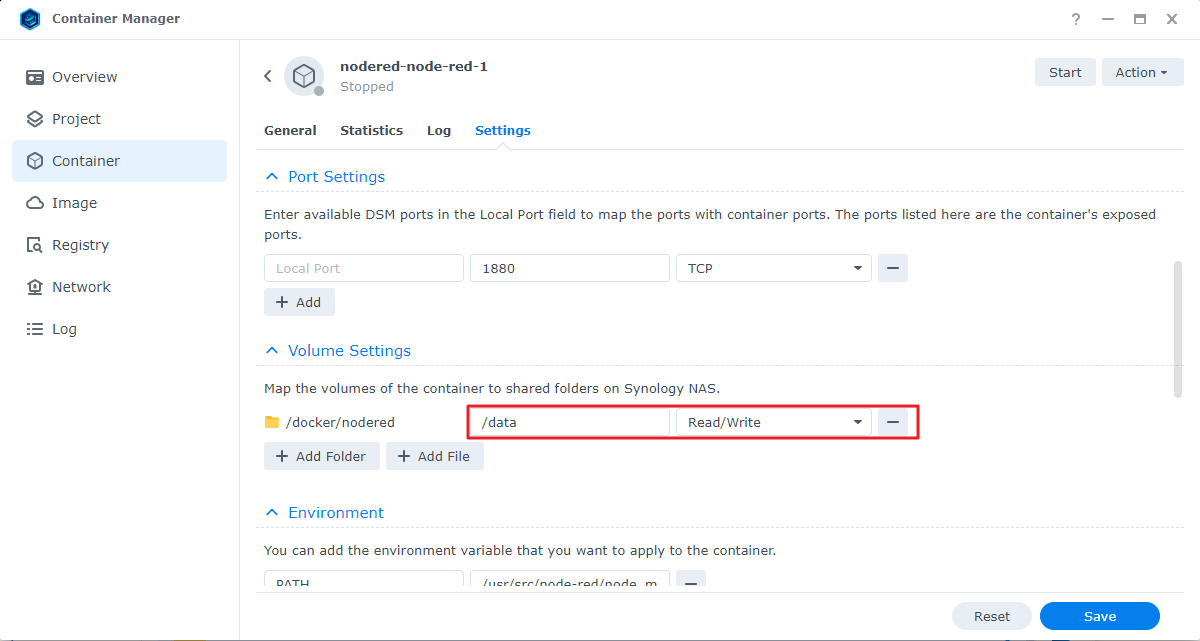
Container Manager’s Node-RED example maps the NAS folder /docker/nodered to /data and displays the access mode. - Check whether the app needs to write to that path. A read-only mount cannot accept a database, settings or upload write even if the NAS folder itself permits it.
- In File Station, inspect permissions on the mapped folder or file. Compare them with the image's documented runtime user and required access. Container and File Station permission settings must agree.
- If the documented Synology workaround involving Everyone is necessary, limit that permission to the app's specific mapped subfolder or file. Keep the rest of the shared folder under its intended access controls.
- Restart only the affected container after saving the change, then perform a small app action that writes to the mapped data location. Keep the original data and prior settings until the test succeeds.
Check the result
The app stays running, its log no longer reports the same access error, and the test data remains available after a container restart.
Need help?
Submit Ticket with the image/tag, error path and mount/permission screenshots. Hide tokens, passwords and unrelated share contents.
Updated 240503