
Frequently Asked Question
Why does Secure SignIn fail to connect after I scan the Approve sign-in QR code?
A custom address or public HTTPS port can be encoded incorrectly in the setup QR code. Compare the displayed address with the route you already use to reach DSM.
Applies to: Secure SignIn Approve sign-in setup on DSM 7.x, including supported DSM 7.3 systems, using a public IP, QuickConnect ID or domain. This is separate from recovering a lost account or OTP seed.
Before you start: Keep your existing working sign-in method until the new one is tested. Do not disable 2FA, expose a new router port or share the QR code, password or recovery codes as a shortcut.
Check and resolve
- In the Approve sign-in wizard, read the address shown below the QR code. Check the hostname and public HTTPS port against your administrator's intended DSM address.
- If the encoded address is wrong, ask the NAS administrator to review Control Panel > External Access > Advanced and enter the correct Hostname or static IP and DSM HTTPS port. These must describe the existing approved connection, not an arbitrary new public exposure.
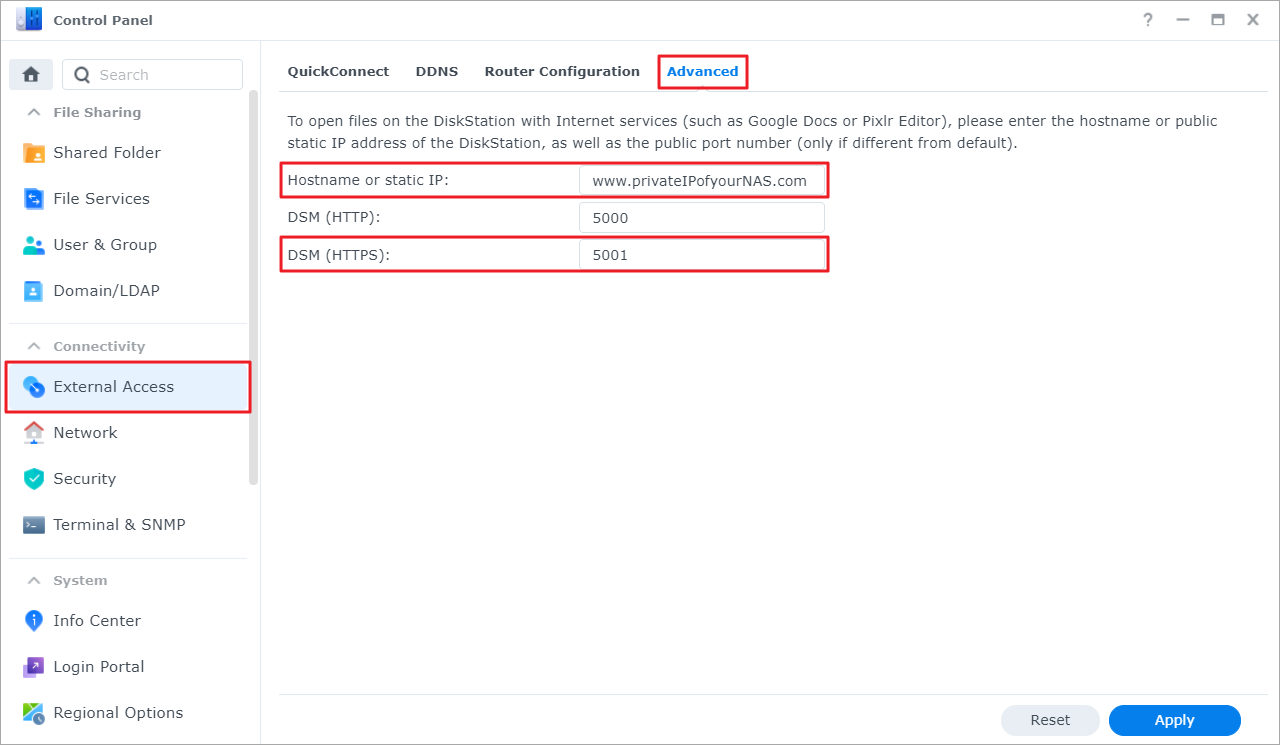
DSM External Access > Advanced shows the hostname and DSM HTTPS port fields used in the connection check. The pictured values are examples. - Test that same HTTPS address from a computer and the mobile device. Check DNS and the already configured router/firewall path if either cannot reach it. Do not accept an unexplained certificate warning merely to complete setup.
- Restart the setup wizard after correcting the address and scan the newly generated code in Synology Secure SignIn.
- Alternatively, in the mobile app choose Set up or +, then Set Approve sign-in Manually, and enter the correct public domain and accessible port. Approve sign-in and a generic OTP QR code are different methods.
- If the service itself is unavailable, have the administrator confirm the NAS is signed in to the intended Synology Account and can use Secure SignIn's required service connection.
Check the result
Complete a new test sign-in from the intended client, confirm the correct account/device receives the request, and retain the backup sign-in method.
Need help?
Submit Ticket with the error wording and whether both devices can open the intended DSM address. Hide QR codes, account identifiers and secrets in screenshots.
Updated 260423