
Frequently Asked Question
A third-party camera appears on my VIGI NVR but shows Not certified or no usable video. What should I check?
QUICK ANSWER
Discovery does not prove that the recorder can authenticate or decode the camera. Check its ONVIF account, connection details and stream compatibility before replacing equipment.
Applies to: VIGI NVRs adding a supported third-party camera through ONVIF; the illustrated interface is a TP-Link example, not a customer installation.
Check local connectivity
Confirm the camera and recorder have a valid network path and no duplicate address. Use the camera's documented service and account settings; a cloud-app account may not be its ONVIF account.
Enable the camera's supported integration
If the camera requires ONVIF to be enabled or a separate integration user to be created, follow that manufacturer's procedure. Preserve unique credentials and grant only the access required for recording.
Add or edit the correct entry
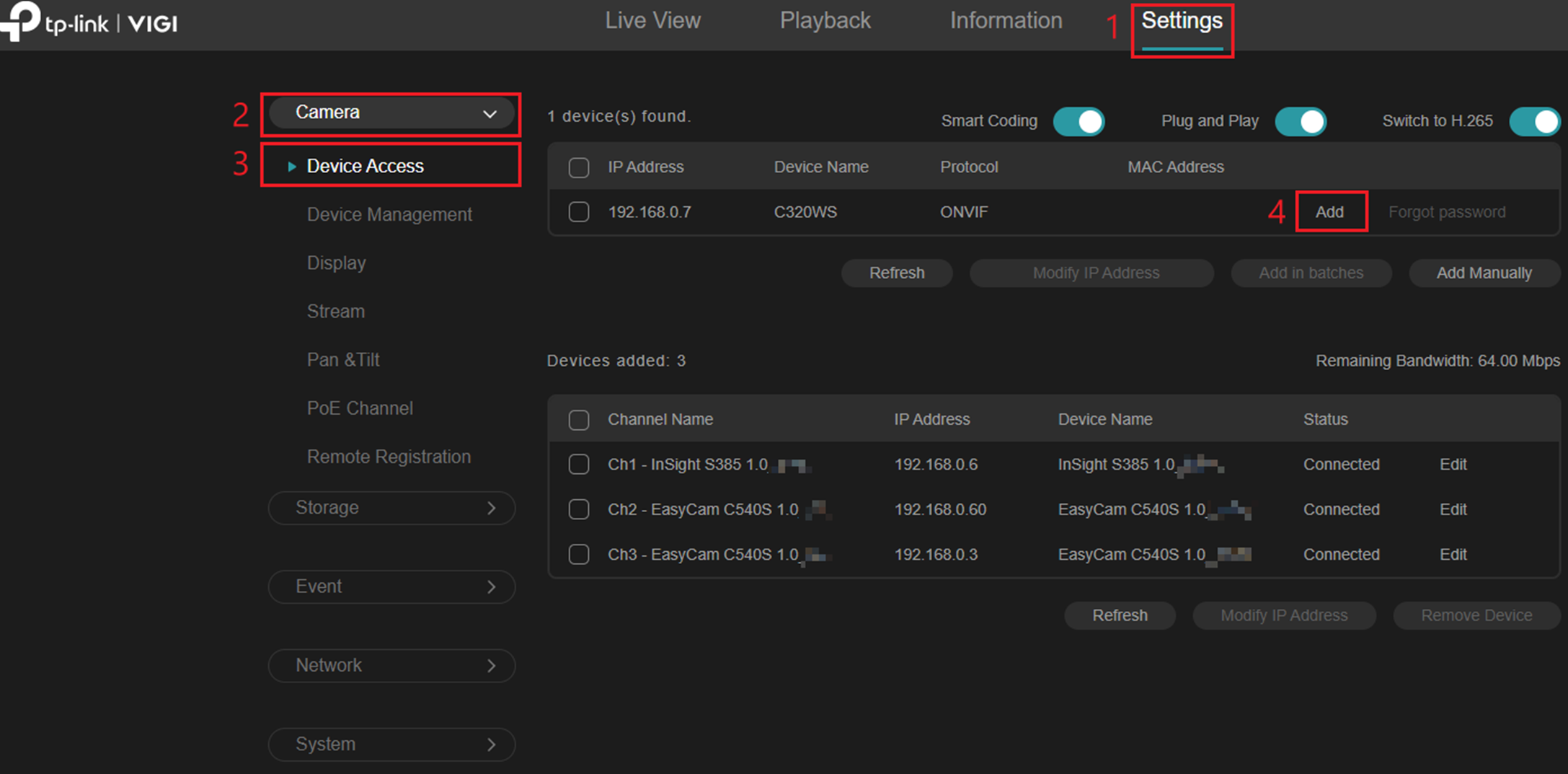
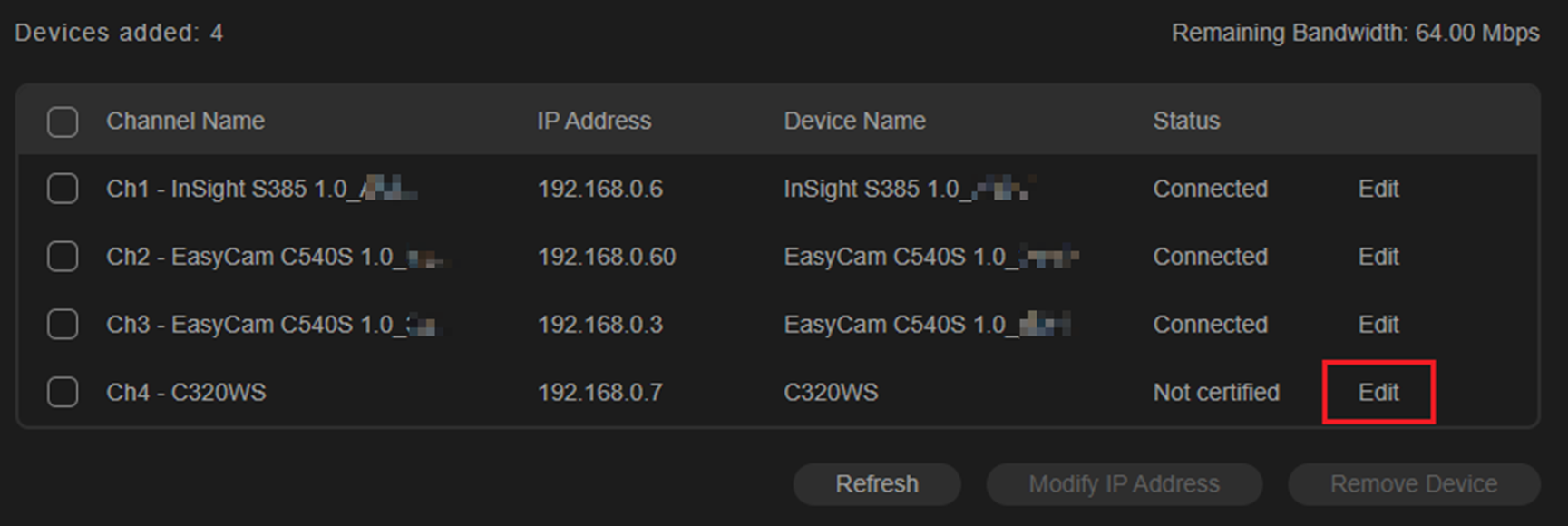
On the illustrated VIGI interface, use Settings > Camera > Device Access. Select ONVIF and check the camera address, service port and credentials. A Not certified status needs the documented credential/edit check; it is not proof that the camera is defective.
Check the video stream
If authentication succeeds but video fails, compare codec, resolution, frame rate and available recorder bandwidth. Use a supported test stream, changing one setting at a time, and check both main and sub streams where available.
Separate protocol support from smart features
An ONVIF video connection does not guarantee every audio, event or AI feature will work. Use RTSP only where both devices and the required workflow support it; it is a separate integration path.
Test recording and playback
Confirm live view, a newly recorded interval and playback/export of that interval. An online icon alone is not a completed surveillance test.
Confirm the result
The intended channel displays and records usable video, and a fresh sample can be played back. Record any unsupported events or audio separately.
Before going further: Do not expose camera ports to the internet or share administrator passwords to make discovery work. Preserve existing recordings and settings before changes.
If you need help
Include these details in your ticket: Camera and NVR models/firmware, protocol, exact channel status, stream settings and a redacted network sketch.
Related guidance: My Tapo camera works in the app but my NAS or NVR rejects its login. Which account should I use? · My VIGI NVR detects a new hard drive but does not record. Does the disk need initialising?
Updated 261110