
Frequently Asked Question
My Tapo camera works in the app but my NAS or NVR rejects its login. Which account should I use?
QUICK ANSWER
RTSP/ONVIF uses a separate local Camera Account on supported Tapo models, not your TP-Link ID. First check that the exact model and operating mode support third-party streaming.
Applies to: Supported Tapo RTSP/ONVIF cameras; many battery models do not provide the same continuous local-stream features.
Work through these checks
- Check the model, hardware revision and firmware for RTSP/ONVIF support. Do not assume support from a similar camera name or from a working cloud live view.
- In the Tapo app, open the camera’s settings > Advanced Settings > Camera Account where available. Create or confirm the intended local credentials and use those in the recorder’s camera login fields.
- Confirm the camera’s current local IP and the network path from the recorder. Tapo documents RTSP on port 554 and ONVIF service on 2020. Use the normal stream1/stream2 path for supported single-lens models; dual-lens paths can differ.
- Test one local stream, then configure the correct recorder profile. Check privacy mode and concurrent viewers if a previously working stream is refused or interrupted. Keep the app’s own account separate.
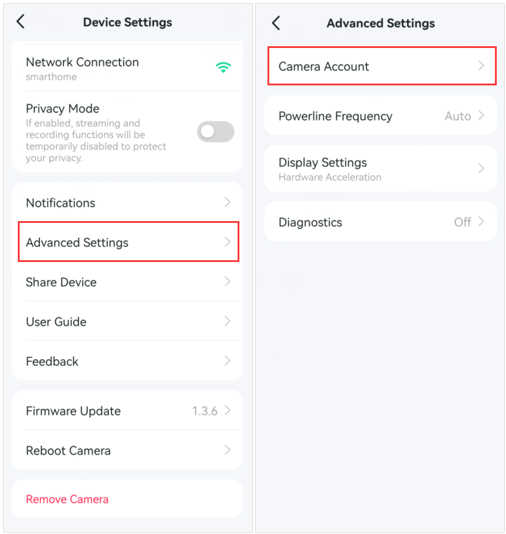
Genuine Tapo example: the local Camera Account differs from the cloud TP-Link ID. Availability depends on the exact camera. Tap the image to enlarge. Interface details may differ by software version.
Confirm the result
The recorder displays the intended camera and records a short clip that can be played back. Then verify ordinary Tapo app viewing still works.
Before going further: Keep RTSP/ONVIF private. Do not publish camera ports or put credentials into screenshots, tickets or shared stream URLs.
If you need help
Include these details in your ticket: Camera/hardware/firmware, recorder/software version, selected protocol, error and whether a local stream opens.
Updated 261107