
Frequently Asked Question
My Tapo pan/tilt camera points to the wrong place after tracking. How can I correct it?
QUICK ANSWER
Use Pan & Tilt Correction on supported models to recalibrate the lens position. Check mounting and tracking settings first; manually forcing the lens can damage its mechanism.
Applies to: Tapo pan/tilt models with the correction feature; fixed-lens cameras do not have it.
Work through these checks
- Record the intended view and the offset after a tracking event. Check the camera’s exact model, hardware revision and firmware, and whether a patrol or preset deliberately moves the view.
- Confirm the mounting base is secure and nothing obstructs movement. Do not rotate the motorised lens by hand or loosen a mounted camera where it could fall.
- Open the camera’s Device Settings > Pan & Tilt and run Pan & Tilt Correction where available. Let the movement finish without issuing additional pan/tilt commands.
- Restore the intended viewpoint and test one ordinary tracking event. If the view drifts again or the app reports a false end-of-travel limit, save before/after evidence for assessment.
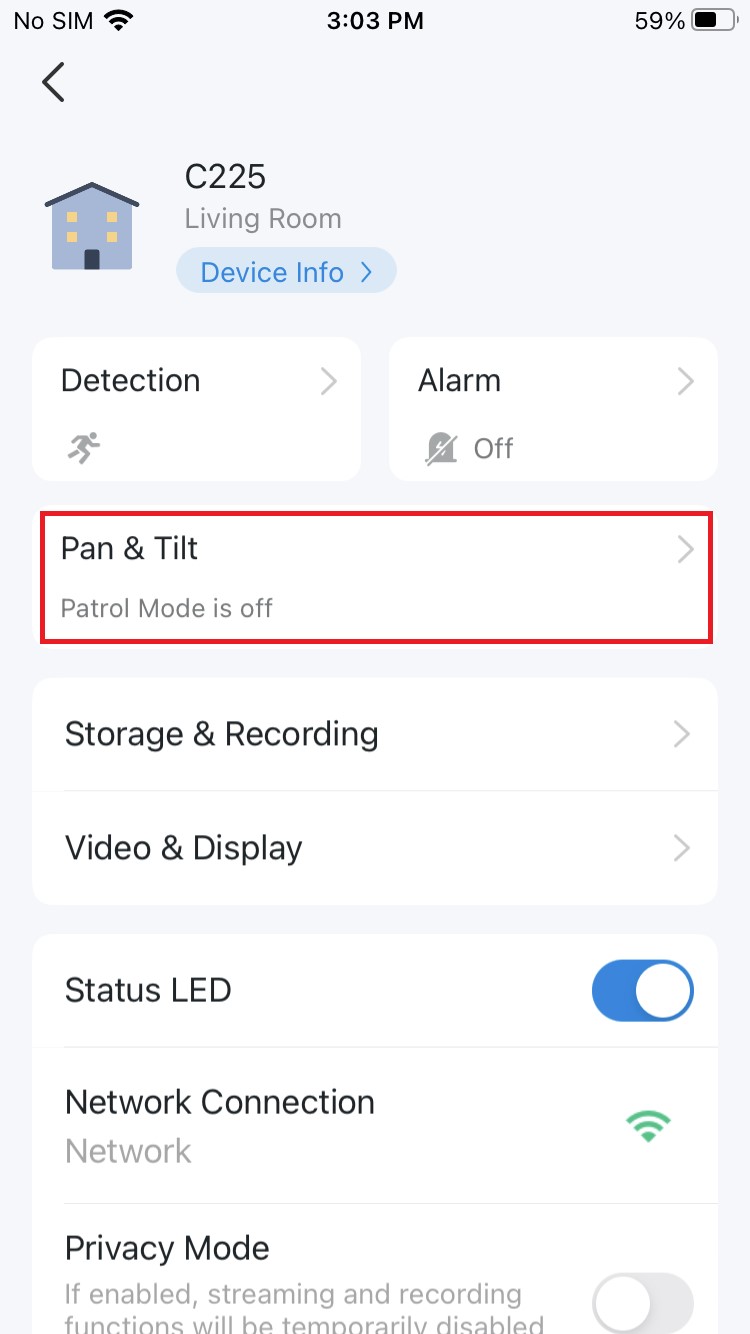
Genuine Tapo example: open the supported Pan & Tilt settings. Menu placement can vary by model. Tap the image to enlarge. Interface details may differ by software version.
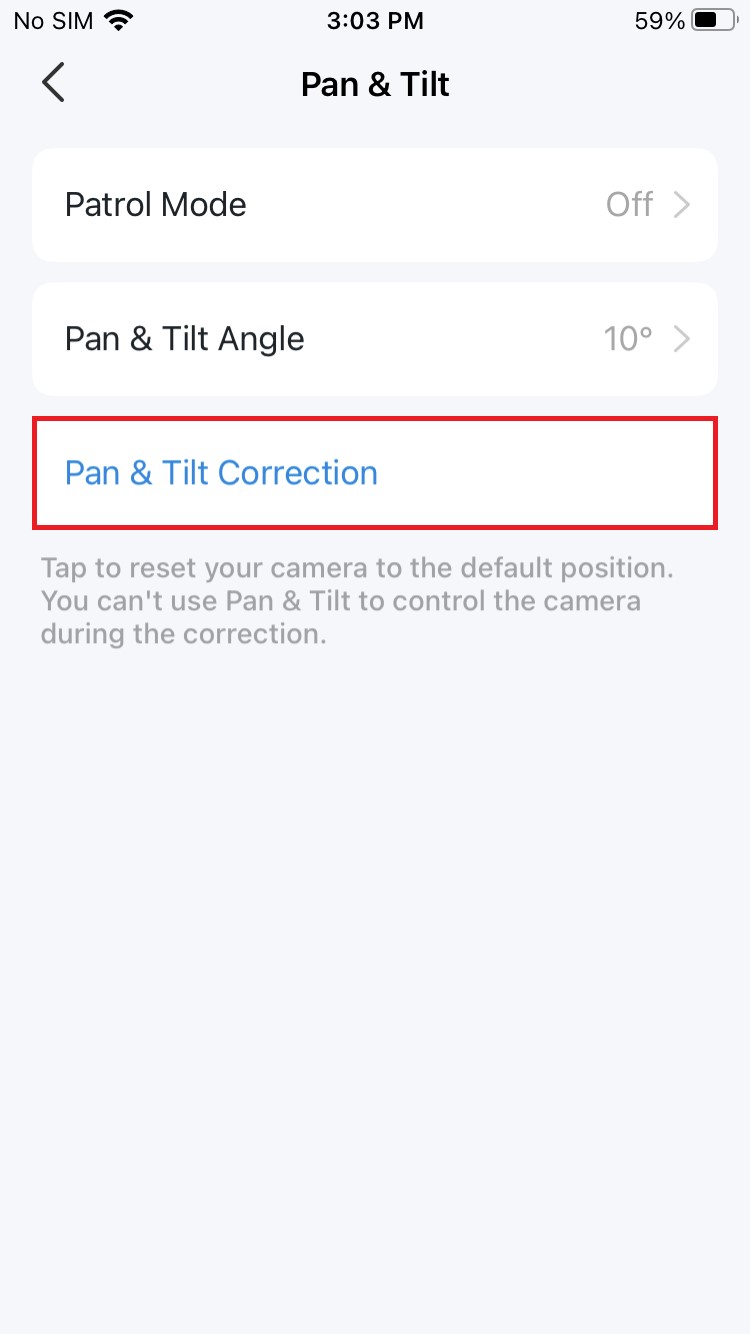
Genuine Tapo example: let correction finish without manually forcing the lens. Tap the image to enlarge. Interface details may differ by software version.
Confirm the result
The camera returns to the expected view and reaches its normal movement range without repeated offset or limit errors.
Before going further: Do not install a beta build from a discussion thread as a routine fix. Firmware and feature availability depend on the exact regional hardware version.
If you need help
Include these details in your ticket: Model/hardware/firmware, mounting photo, tracking/patrol settings and redacted before/after views.
Updated 261107