
Frequently Asked Question
Why are my Tapo camera's SD-card recordings missing or full of gaps when live view works?
ACE SUPPORT · TP-LINK
Check the storage source, local recording switch and schedule before formatting a card. Live view and event notifications do not prove that continuous video was recorded.
Applies to
Mains-powered Tapo C200/C210/C220/C225 with supported microSD storage. Check exact model/revision capacity and card requirements. Battery-operated Tapo D230 and other battery models do not provide the same continuous-recording schedule.
Before you begin
Back up accessible important footage before any storage changes. Formatting or a write-based card test can erase data; do not perform it while trying to preserve recordings.
Power off the camera before removing or reseating a microSD card. Do not repeatedly format a failing card that may contain needed evidence.
Work through these checks
- Open the affected camera's Live View > Playback & Download and choose SD/local storage plus the correct date. Distinguish this from phone-saved clips or Tapo Care cloud recordings. Review a known recent period rather than relying only on event notifications.
- In Device Settings > Storage & Recording, check the card's recognised status and ensure Local Recording is enabled. Record any error before changing settings. A working live feed only confirms viewing, not a healthy storage path.
- Open Recording Schedule. Detection Recording deliberately leaves intervals without detected activity, while empty periods record nothing. If the mains-powered model supports it and continuous coverage is required, assign Continuous Recording to the necessary periods and save.
- If the card is unrecognised, check model-specific compatibility and visible damage. Preserve footage first, then power off and reseat the card. A separate compatible high-endurance card can help determine whether the original card is the problem without overwriting it.
- Make a short controlled test during a scheduled recording period. If detection-only recording is chosen, trigger the configured detection deliberately. Formatting is a later, data-erasing step, only after the preservation decision and the manufacturer's exact instructions are reviewed.
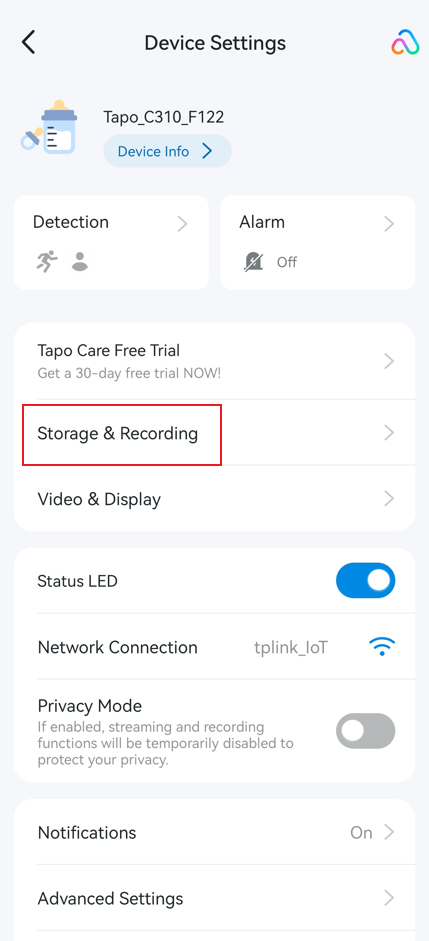
Official TP-Link example of the Storage & Recording entry; labels can vary by app version. Manufacturer guide
Confirm the result
Play back the test from local storage, confirm the timestamp and expected duration, then check again after the next scheduled period. New recordings do not recover video that was never captured or was overwritten.
When to contact us
Send our Support Specialist the camera/revision/firmware, card brand/model/capacity, storage error and schedule screenshot with private video obscured. Stop using the original card and seek advice promptly if missing footage is important.
Related ACE guides
Updated 260929