
Frequently Asked Question
My Omada SSID works until I assign a VLAN, then clients have no internet. What is missing?
QUICK ANSWER
An SSID VLAN tag must have a complete path to the intended gateway and DHCP service. Creating the wireless name alone does not create the routed network or carry its VLAN through every uplink.
Applies to: Omada APs, managed switches and gateways; third-party routers must support the intended VLAN design.
Work through these checks
- Compare the working untagged SSID with the affected VLAN SSID. On one test client, record the IP address, subnet, gateway and DNS. A self-assigned address points toward DHCP or the VLAN path.
- Trace the VLAN from the AP port through every switch uplink to the gateway. Confirm the correct tagged membership while preserving the AP’s management network and the ports used for administration.
- Verify that the target gateway interface and DHCP scope exist for that VLAN. An access point cannot supply routed internet access just because a VLAN number was added to an SSID.
- Once the client receives correct settings, test its gateway, then external connectivity and DNS. Review guest isolation and ACLs separately; they may deliberately restrict local devices or internet access.
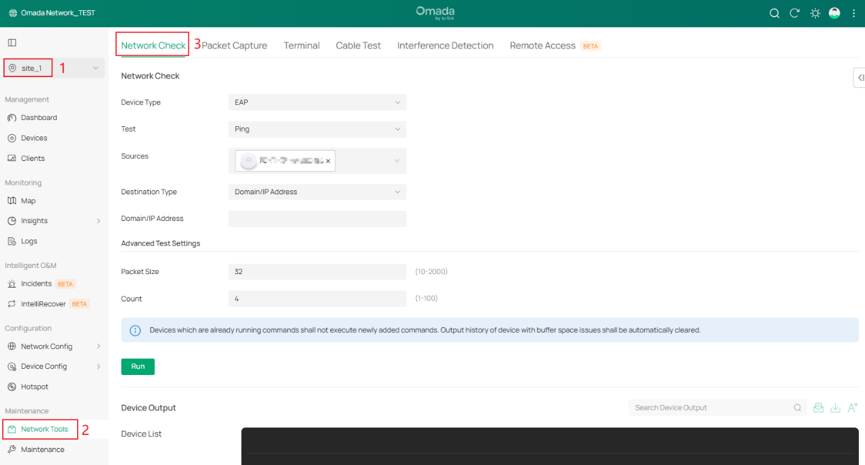
Genuine Omada diagnostic example: use the intended source device and gateway address. Do not copy the example network values. Tap the image to enlarge. Interface details may differ by software version.
Confirm the result
The client receives the intended VLAN address and can reach only the services allowed by its policy. The AP/controller remain manageable.
Before going further: Do not change every uplink’s native VLAN at once or permit all traffic to solve one SSID. Keep a recovery management path.
If you need help
Include these details in your ticket: Controller/AP/gateway versions, VLAN diagram, redacted port profiles and client network settings.
Updated 261107