
Frequently Asked Question
My standalone Omada EAP turns WiFi off at the wrong time. How do I check its schedule?
QUICK ANSWER
A wireless schedule follows the device's configured clock, time zone and on/off action. Check those settings together before changing the schedule repeatedly.
Applies to: Standalone Omada EAP web interfaces covered by the 5.x guide. Controller-managed EAPs should be changed through their controller.
Work through these checks
- Identify who controls the AP. Confirm whether it is standalone or adopted by an Omada controller. A controller's WLAN schedule can make local assumptions incorrect.
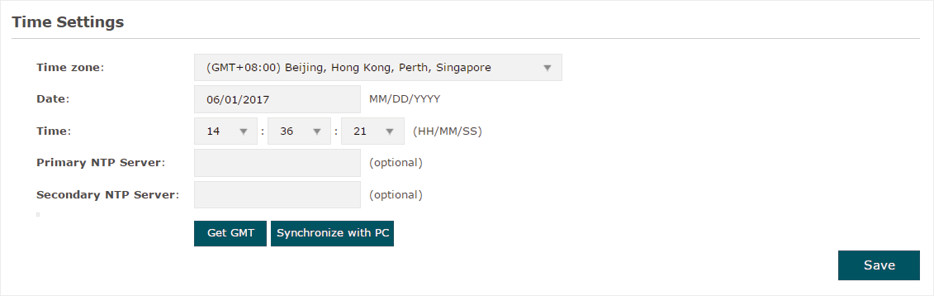
- Check the clock. In the standalone system time settings, verify the current date/time, time zone, NTP synchronisation and daylight-saving settings. Singapore uses UTC+08:00 without daylight saving.
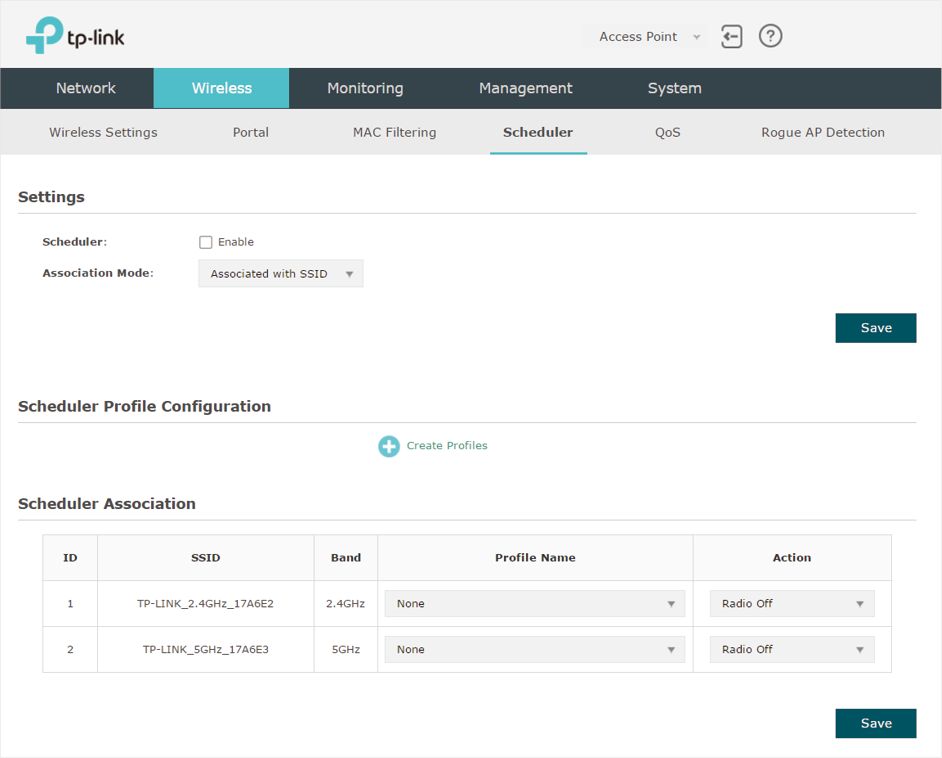
- Inspect the schedule and association. Open Wireless > Scheduler on the documented interface. Check the weekday/time range and whether the association is Radio On or Radio Off, and whether it applies to the intended band/SSID.
- Test one planned transition. Retain a wired management path, save an agreed test change and observe a start/end transition. Check the clock again after a restart if the error returns.
Confirm the result
The intended SSID changes state at the expected local time and wired management remains available.
Before going further: Do not schedule every management path off without a recovery method or factory-reset the AP to correct a clock mismatch.
If you need help
Include these details in your ticket: EAP/hardware/firmware, standalone or controller mode, time settings and schedule/association screenshots.
Related guidance: Why does my Omada guest Wi-Fi connect without opening the portal login page?
Updated 261111