
Frequently Asked Question
Why does my Omada guest Wi-Fi connect without opening the portal login page?
QUICK ANSWER
Check that the portal applies to the connected SSID and that the controller is running. Wi-Fi association, DHCP and portal authentication are separate stages.
Applies to: Controller-managed Omada EAP networks using captive portal authentication, including OC200/OC300 or supported software controllers.
Work through these checks
- Confirm the client received a valid address, gateway and DNS server on the guest network. Fix a DHCP or VLAN fault before changing portal settings.
- Open the controller's Portal settings and check that the portal is enabled for the exact SSID/network being tested. In current controllers this is under Site Settings > Authentication > Portal; older versions differ.
- Check that the controller and any configured external portal, RADIUS or voucher service are reachable. A software controller must remain running for the portal functions that depend on it.
- Test with a fresh, unauthenticated client. A previously authorised device may not be redirected again until its session expires. Check the client/session list and portal policy before removing only that test client's authorisation.
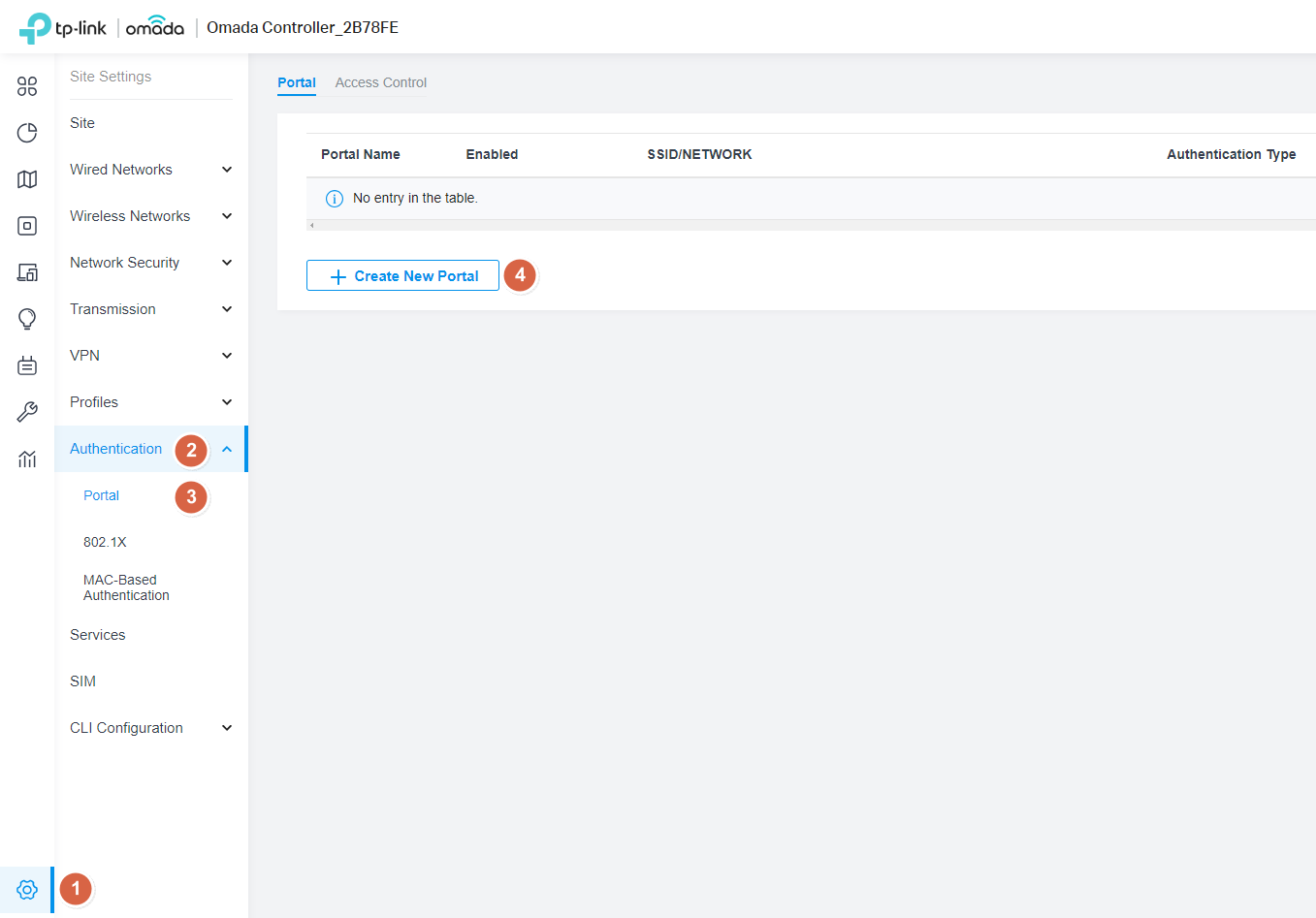
TP-Link controller example: locate the Portal profile. Tap the image to enlarge. Interface examples may differ from your version.
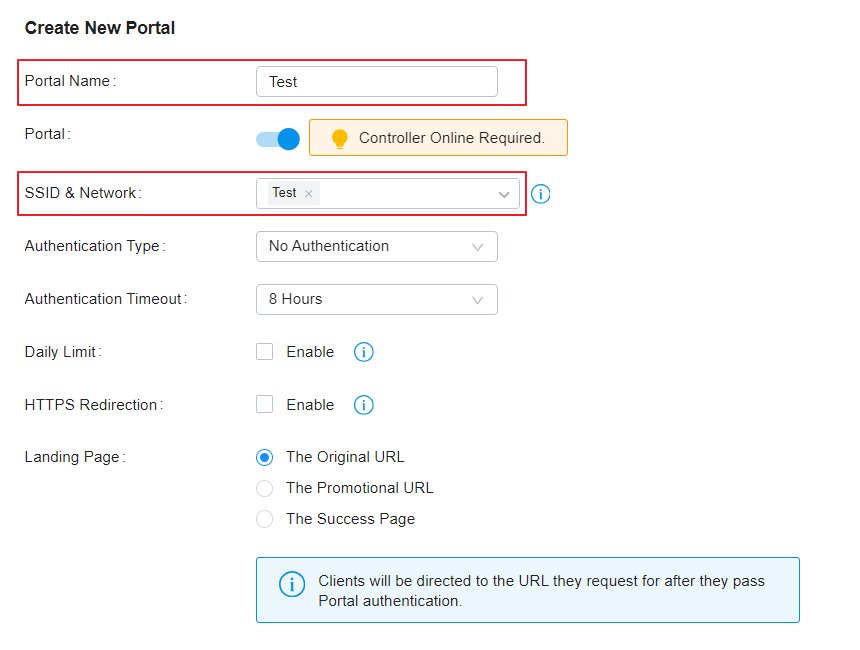
TP-Link example: check the assigned SSID/network and controller requirement. Authentication method shown is an example, not a recommendation to remove security. Tap the image to enlarge. Interface examples may differ from your version.
Confirm the result
A fresh client should see the intended login page, authenticate successfully and then obtain internet access while guest isolation remains in place.
Before going further: Do not disable all guest firewall rules or make the network open to work around a missing login page.
If you need help
Include these details in your ticket: Controller/EAP versions, authentication method, SSID/VLAN, client IP details and a redacted portal configuration screenshot.
Updated 261107