
Frequently Asked Question
Insta360 Studio crashes or stalls during export. What should I test first?
QUICK ANSWER
Separate a damaged source clip from a graphics/codec problem. Test one short local clip with current Studio and compatible graphics drivers before retrying a large export.
Applies to: Insta360 Studio on supported Windows or macOS computers, including X5 media workflows.
Work through these checks
- Keep an untouched copy of the originals. Copy a short known-good clip to a local drive and export to a folder with sufficient free space and a simple path.
- Update Studio and check the computer against its current system requirements. Update Windows GPU drivers through the graphics manufacturer; on Mac, graphics updates normally arrive with macOS.
- If export is slow, review User Preference > Codecs and Hardware Acceleration. Use the supported exporter choices and Auto image-processing acceleration as an initial comparison. Test a lower bitrate or less demanding output.
- If Studio crashes, check whether only one clip fails and whether graphics overlay/overclocking utilities are involved. Record each change and revert it if it makes no difference; avoid repeatedly changing every preference together.
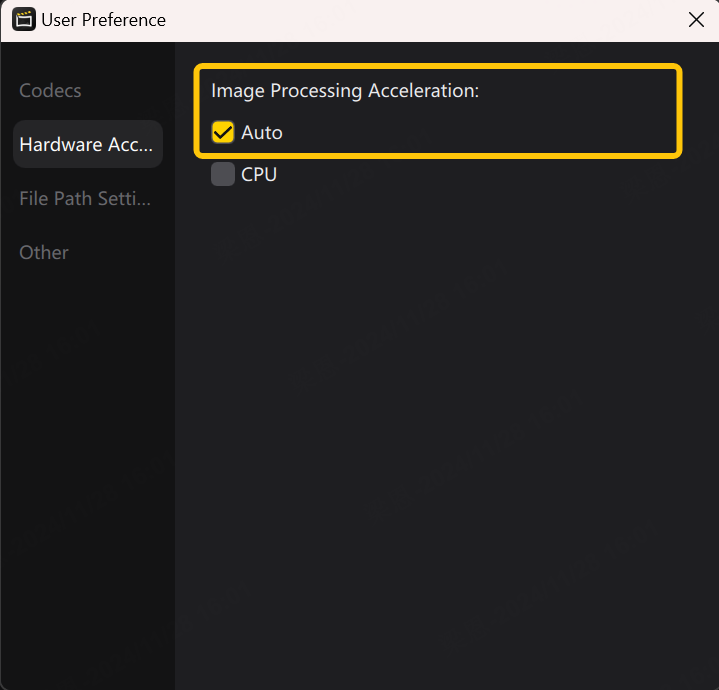
Insta360 Studio example: the Auto image-processing acceleration control. Tap the image to enlarge. Interface examples may differ from your version.
Confirm the result
Export the short test and play the resulting file fully. Then retry the affected project. If one source always fails, preserve it for file-repair assessment.
If you need help
Include these details in your ticket: Studio/OS/GPU driver versions, GPU/RAM, error or failure percentage, export settings and whether a second clip works.
Updated 261107