
Frequently Asked Question
Insta360 X Series: Connect to the App or Troubleshoot Wi-Fi
ACE KNOWLEDGE BASE · INSTA360
Connect the intended camera and phone before trying more involved troubleshooting.
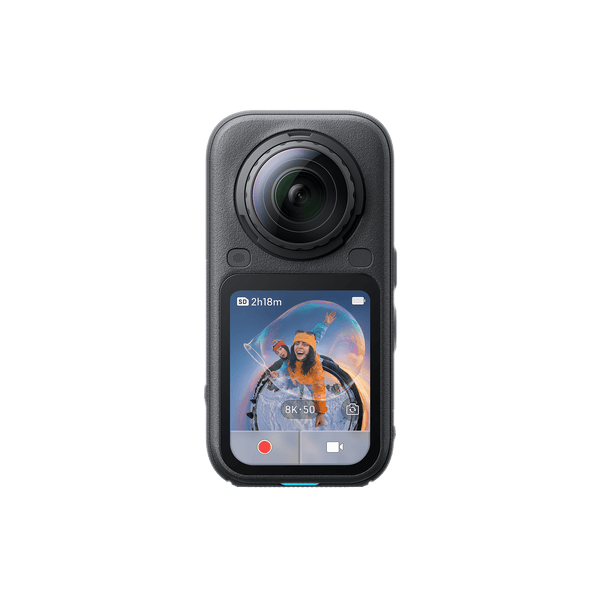
Product photograph from ACE’s X6 catalogue. X6 shown as an example; controls and storage vary by camera model.
Start with Wi-Fi, Bluetooth and the correct camera. This guide covers wireless connection for Insta360 X3, X4, X4 Air, X5 and X6. Menu labels and phone permissions vary with the app, firmware and operating system.
1. Prepare the Connection
Switch on the camera. On these models, swipe down to the shortcut menu, open Settings → Wi-Fi Settings and enable Wi-Fi. Enable Wi-Fi and Bluetooth on the phone, then keep the devices close together.
2. Connect Through the Insta360 App
Open the official Insta360 app and tap its camera icon. Select the intended camera; check the identifier against the camera rather than connecting to a nearby person's device. Authorise the first connection on the camera when prompted.
3. If the App Cannot Connect
Check the camera's Wi-Fi name and password in its Wi-Fi settings. If automatic connection fails, select that network in the phone's Wi-Fi settings and enter the camera's own password. Check the phone permissions requested by the app. The camera's Wi-Fi is a local camera connection, not an Internet hotspot.
4. Keep One Connection at a Time
Disconnect the previous phone or computer before trying another device. Do not factory-reset the camera as an automatic first step. For ONE X, X2, Ace or GO models, use the model's own connection guide.
Still stuck? Send our Support Specialist the camera and phone models, operating system, app/firmware versions, exact error and a redacted screenshot. Do not send passwords.
Need a hand with your setup?
Tell our Support Specialist the exact model, version, symptom and checks already completed. Redact private information from screenshots.
Submit TicketUpdated 261105