Frequently Asked Question
Insta360: Transfer Original Files and Export with Studio
ACE KNOWLEDGE BASE · INSTA360
Protect the original recordings, import them and verify the finished export.
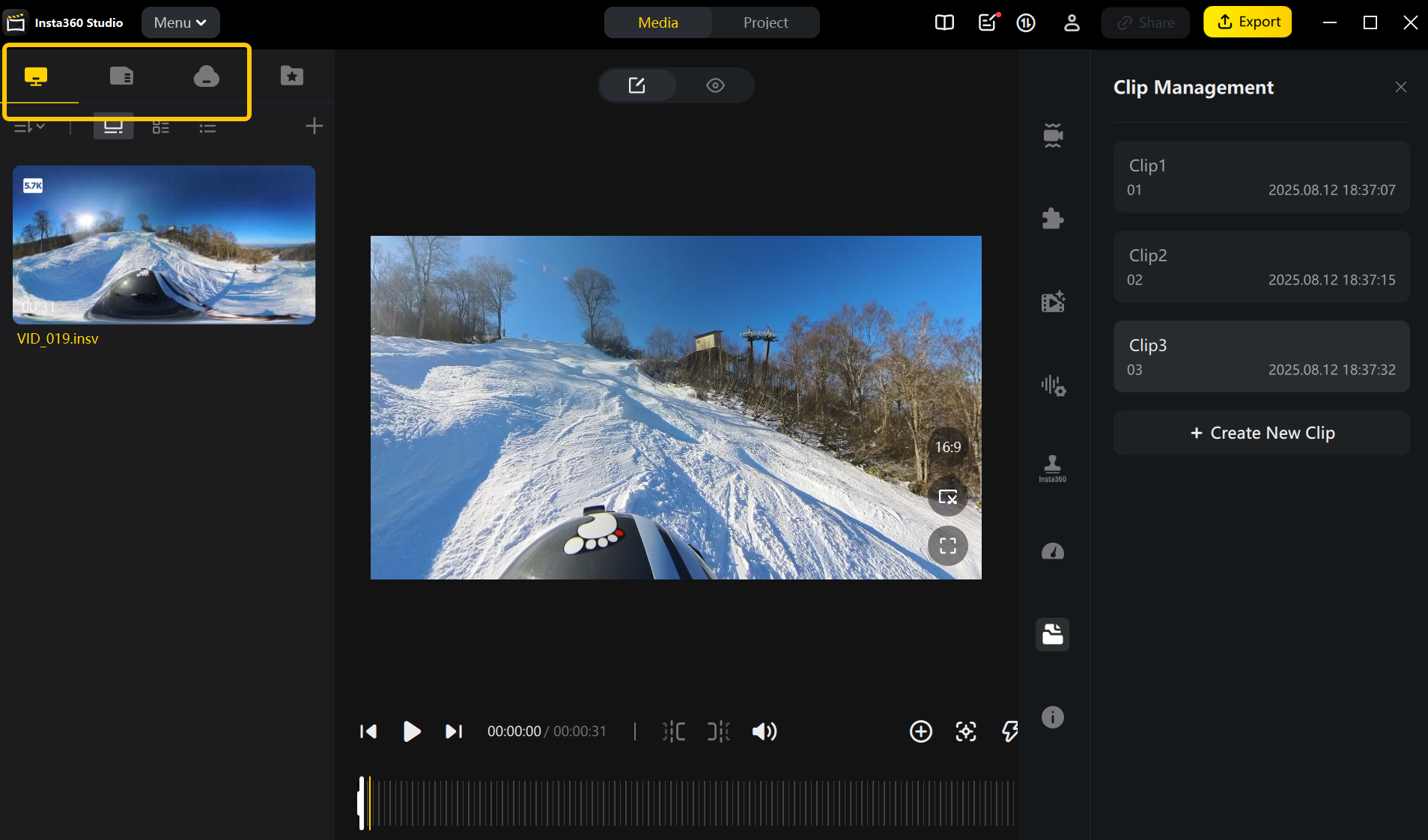
Official Insta360 Studio illustration: imported media and clip management. Interface appearance may vary by version. Select the image to enlarge.
Keep the originals, then export the result you need. Copying a camera file to a computer, importing it into Insta360 Studio and exporting a finished video are separate steps. An original 360 recording is not the same as a ready-to-share flat video.
1. Copy the Original Files
For X6, connect the powered-on camera with its supplied USB data cable and choose File Transfer when prompted. Other models may call this U-Disk Mode. Alternatively, power off the camera before removing its microSD card for a suitable card reader.
Copy the complete original recording files to a labelled local folder. X6 360 video uses .insv and 360 photos use .insp. Retain the camera/card copy until the copied files and finished output have been checked.
2. Import into Studio
Use the current official Insta360 Studio version compatible with your computer and camera. Drag the copied files into Studio. If automatic external-device detection is used, check its setting under Settings → User Preference → Other. Do not rely on Bluetooth to import camera files on a Windows PC.
3. Choose the Output
For an ordinary video, select the intended view and framing. For a navigable 360 result, use the appropriate 360 workflow and a viewer/platform that supports panoramic media. The current Studio Project workflow uses a 2:1 (360° Panorama) aspect ratio for 360 projects.
4. Export and Check
Choose Export, review the parameters and destination, then inspect progress in Task Center. Open the exported file and check picture, sound, duration and intended viewing behaviour before removing originals.
For help, provide the camera, computer, Studio version, source format and exact import/export error. Share footage privately only when requested.
Need a hand with your setup?
Tell our Support Specialist the exact model, version, symptom and checks already completed. Redact private information from screenshots.
Submit TicketUpdated 261105