
Frequently Asked Question
How can I reduce echo on a desk phone connected to Jabra Engage 75?
QUICK ANSWER
Check the desk-phone setup and microphone level. A delayed echo is different from sidetone, where you hear your own voice immediately as you speak.
Applies to: Jabra Engage 75 connected to a compatible desk phone through its base and the correct phone/EHS accessories.
Work through these checks
- Identify who hears the echo and whether it is delayed. Compare a desk-phone call with a computer call through the same headset, so the phone path can be checked separately.
- Confirm the base cabling and setup for the exact phone model, including any required EHS cable and phone headset setting. Use the recommended configuration rather than a setting borrowed from another handset.
- Start with the phone volume around its middle setting and the microphone correctly positioned near the mouth. Record the original microphone/transmit setting before changing it.
- If a delayed echo remains, reduce the microphone level one step at a time during a test call and check both parties' audio. Avoid turning every level down together, since that makes the source harder to isolate.
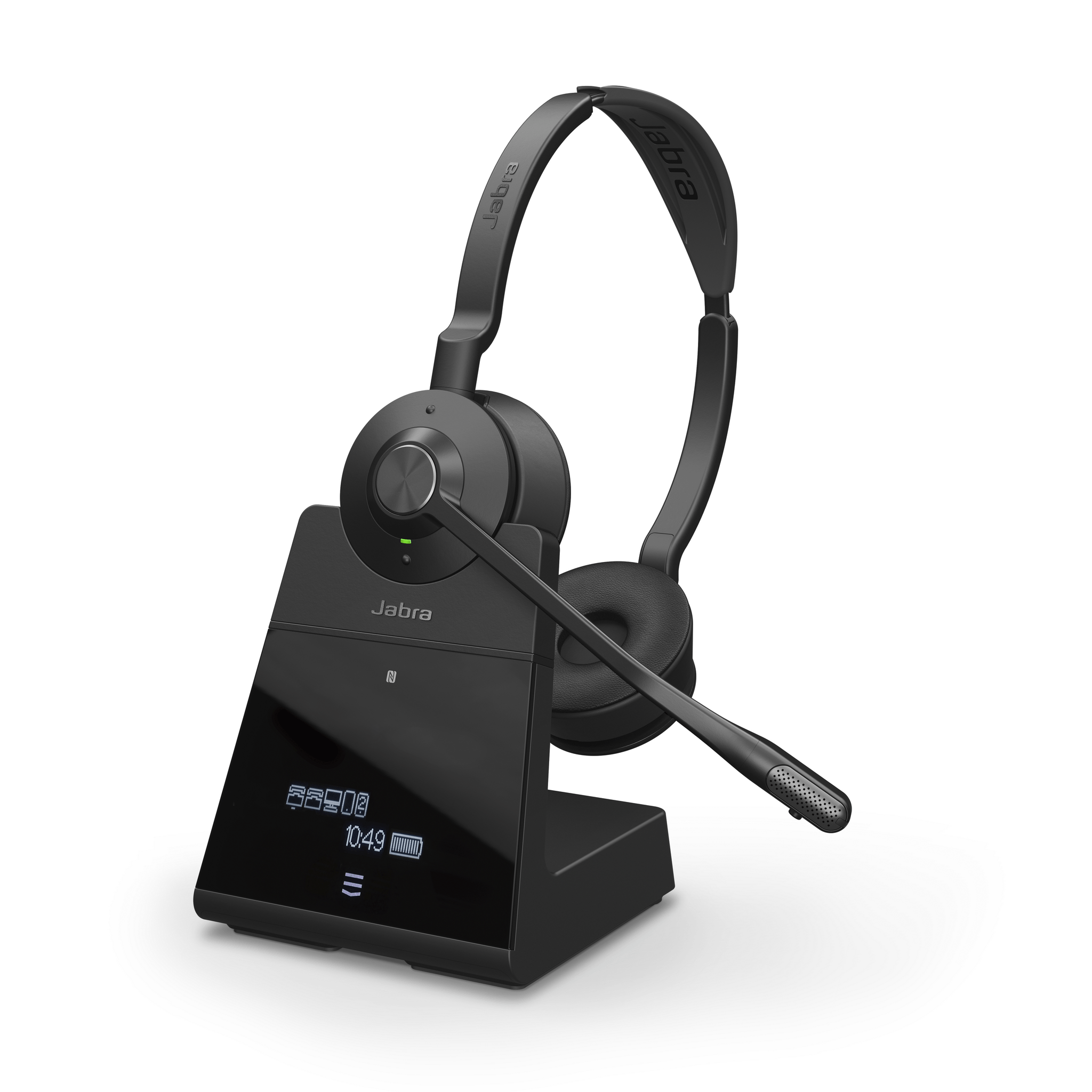
ACE catalogue photo: Engage 75. Check the exact generation and headset/base compatibility; this is not an Engage 65 or SE pairing diagram. Tap the image to enlarge.
Confirm the result
Both parties should hear normal speech without delayed repetition and without the caller becoming too quiet. Immediate self-voice may be normal sidetone and can have a separate adjustment.
If you need help
Include these details in your ticket: Desk-phone model, headset/base firmware, cable/EHS part number, who hears the echo, delayed versus immediate sound and the PC-call comparison.
Updated 261107