
Frequently Asked Question
Why are copies to my SanDisk memory card much slower than the speed on its label?
QUICK ANSWER
The advertised figure may be a maximum read speed. Actual copying also depends on write speed, the reader, USB connection, file sizes and the source drive.
Applies to: SanDisk SD and microSD cards transferring files through a computer or USB card reader.
Work through these checks
- Record the exact card model and whether you are reading from it or writing to it. Compare against that model's specification, not a different capacity or product family.
- Connect a compatible reader directly to a suitable computer port. Avoid an unverified hub, front-panel extension or old reader for the comparison. Check the reader's supported card and interface standards.
- After protecting existing files, time a copy of one large test file from a healthy local drive. Thousands of small files can copy much more slowly; a brief cache burst is not the sustained rate.
- Repeat the same test with another suitable reader or port, changing one part at a time. Close other heavy disk jobs and note whether the slowdown follows the card, reader or source drive.
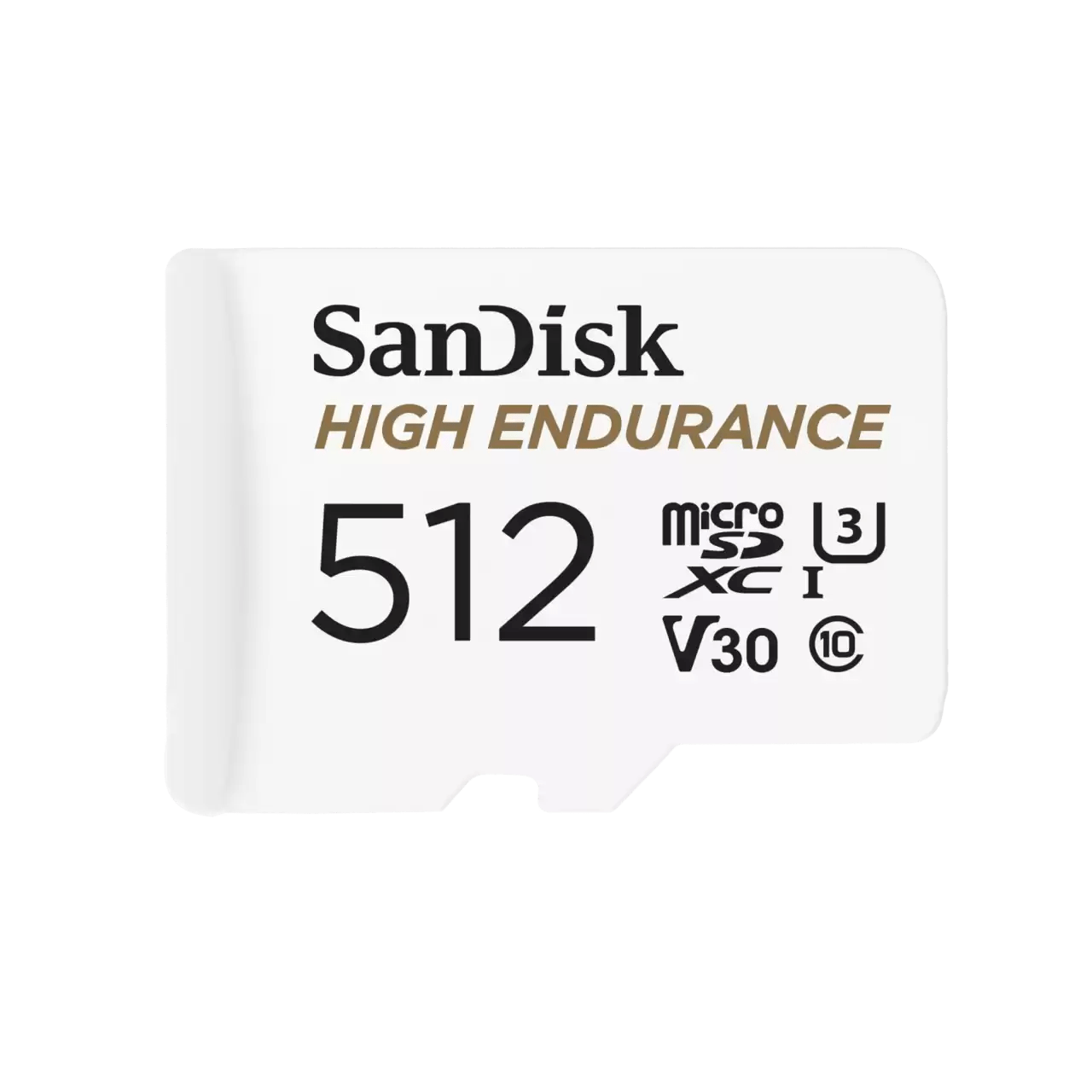
ACE catalogue photo: SanDisk High Endurance microSD. Check the exact card rating and your device requirements; other SanDisk families differ. Tap the image to enlarge.
Confirm the result
Compare repeatable transfer rates in the same direction and test setup. A faster reader helping the result points to the connection path, rather than proving that the card is faulty.
Before going further: If copies report errors, disconnect repeatedly or produce unreadable files, stop speed tests and protect the data first.
If you need help
Include these details in your ticket: Card model/capacity, reader model, computer port, read versus write direction, file type and measured sustained rate in MB/s.
Updated 261107