
Frequently Asked Question
Extend Volume is greyed out despite unallocated space. How should I assess it with AOMEI Partition Assistant?
QUICK ANSWER
First check the partition layout. Windows Disk Management normally needs suitable unallocated space immediately to the right of the NTFS volume; space elsewhere is not automatically usable by Extend Volume.
Applies to: Windows disk-layout assessment and supported AOMEI Partition Assistant resize/move functions. Available operations depend on disk type, file system, encryption and edition.
Work through these checks
- Open Disk Management and identify the correct physical disk. Record the complete left-to-right partition layout, file system and unallocated space. Free space inside another partition is not the same as unallocated space.
- Make and verify a separate backup before planning a resize or move. Record BitLocker status and keep the recovery key available through the authorised process; ensure stable power and a recovery plan.
- In Partition Assistant, inspect the supported Resize/Move or merge operation for that layout. Review the pending-operation preview, affected partitions and any restart requirement before applying anything.
- If a recovery/EFI partition, encryption, dynamic disk or unsupported file system is involved, obtain a specific plan. Do not delete a recovery partition or convert disk types simply to make a greyed control available.
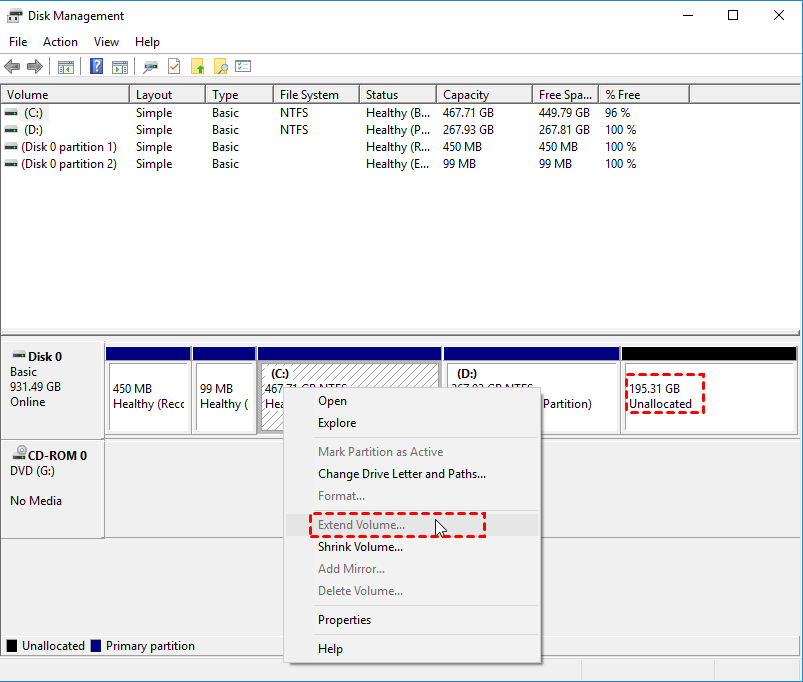
Manufacturer-provided Windows example: the unallocated space is not adjacent to the right of C. Do not copy the example partition sizes. Tap the image to enlarge. Interface details may differ by software version.
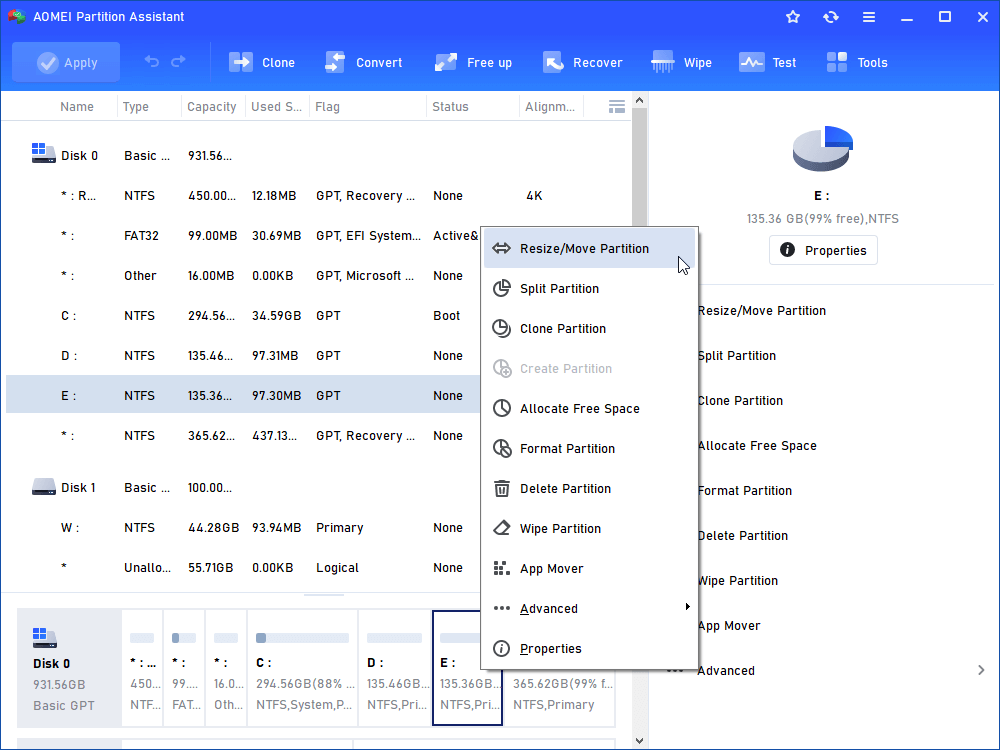
Genuine AOMEI Partition Assistant interface example: review the correct partition and the pending-operation plan before applying a change. Tap the image to enlarge. Interface details may differ by software version.
Confirm the result
The preview should show only the intended layout change. After an approved operation, confirm boot, volume size, file access and recovery arrangements; a larger number alone is insufficient.
Before going further: Partition moves write to disk and can cause data loss if interrupted. Stop when the correct disk, backup or operation is uncertain.
If you need help
Include these details in your ticket: Windows and Partition Assistant edition/version, a redacted full-disk layout, target volume, encryption status and intended size. Never include recovery keys.
Updated 261107