
Frequently Asked Question
AOMEI Backupper rescue media cannot see my NVMe SSD or network adapter. How do I add the right driver?
QUICK ANSWER
WinPE may need the computer's storage-controller or network driver even when installed Windows sees the hardware. Rebuild the rescue media with the matching driver and test visibility before attempting a restore.
Applies to: AOMEI Backupper WinPE rescue media with a missing internal disk or network adapter. This guide focuses on missing hardware, rather than basic media creation.
Work through these checks
- Record the computer model, controller/network adapter and boot-media version. Check whether the disk is absent entirely or present but encrypted; missing drivers and a locked BitLocker volume are different issues.
- Obtain the correct storage-controller or network driver from the computer/hardware manufacturer. Extract the package so the required .inf files are available, matching the rescue environment's architecture and supported Windows PE requirements.
- In Backupper, use Tools, Create Bootable Media and the supported Add Driver control to include the needed driver files. Use an empty, clearly identified USB device or an ISO workflow; creating boot media can erase the selected device.
- Boot the target computer from the rebuilt media without starting recovery. Confirm the disk identity/capacity or network adapter, then check access to the required backup location.
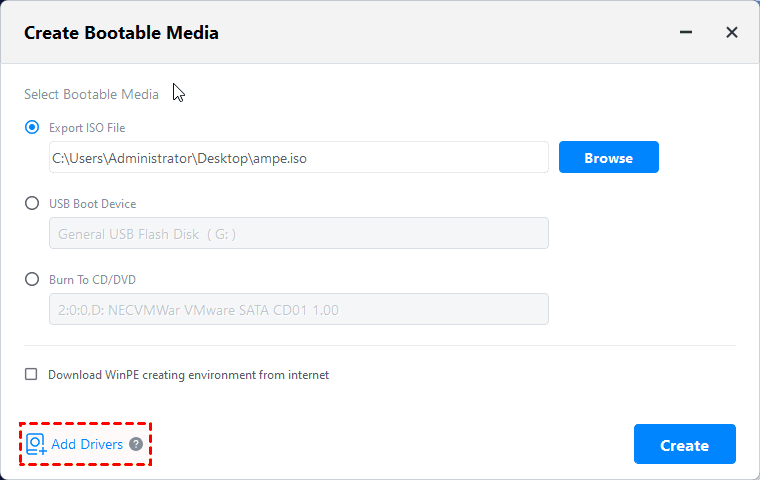
Genuine AOMEI Backupper interface example: Add Drivers. This is a manufacturer example, not your computer or disk layout. Tap the image to enlarge. Interface details may differ by software version.
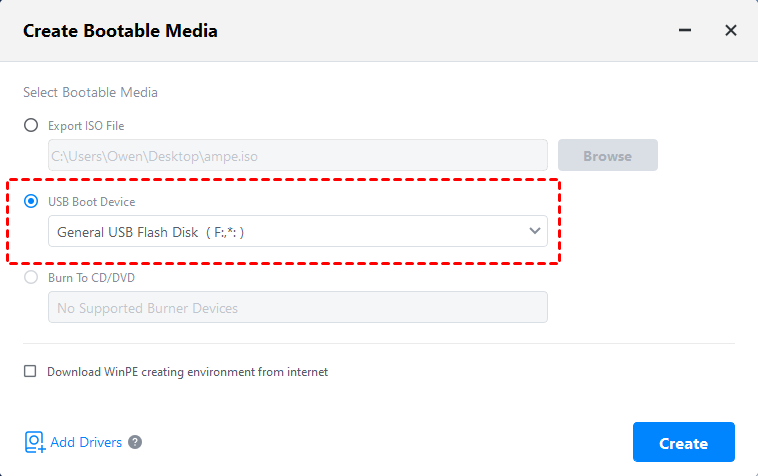
Genuine AOMEI Backupper interface example: select the intended boot medium. Creating a USB boot device can erase that selected device. Tap the image to enlarge. Interface details may differ by software version.
Confirm the result
The intended hardware and backup image should be visible in the actual rescue environment. Record a successful non-destructive visibility check before relying on that media for an emergency.
Before going further: Do not switch RAID/VMD/AHCI modes, disable security features or initialise a disk to make it appear. Keep BitLocker recovery information available through the authorised process.
If you need help
Include these details in your ticket: Computer/controller model, Backupper and WinPE version, driver package/architecture, boot mode and whether the disk is absent or shown as locked.
Updated 261107