
Frequently Asked Question
AOMEI: Plan a Windows SSD Migration Without Losing the Original
ACE KNOWLEDGE BASE · AOMEI
Identify both drives, review the overwrite step and validate the new boot drive.
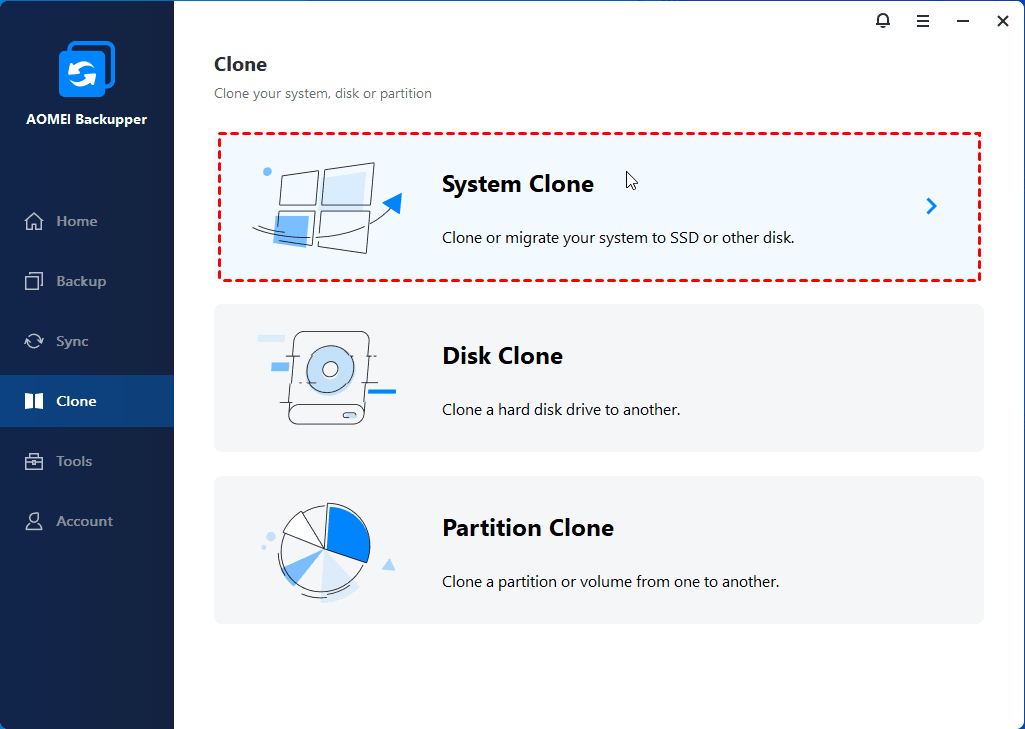
Official AOMEI illustration: System Clone and Disk Clone are different tasks. Licence eligibility depends on the installed edition. Select the image to enlarge.
An SSD migration needs the correct software feature, destination disk and boot plan. Backupper and Partition Assistant have different workflows; check the exact product, edition and version before proceeding.
Before the migration
- Make and check a separate current backup. Preserve the original drive until the migrated system and important files have been verified.
- Identify source and destination by model, capacity and connection. Copy away important destination data: the selected destination can be overwritten.
- Confirm the destination has sufficient capacity for the partitions being migrated. Sector-by-sector copying has stricter capacity requirements.
- Record the source disk's MBR/GPT layout and the PC's BIOS/UEFI boot mode. Do not change partition style or boot mode as a generic troubleshooting step.
Choose one supported workflow
- Backupper: use Clone → System Clone for Windows and its required system partitions. It is a paid feature; Windows Server requires an appropriate Server-capable edition. Use the official Disk Clone guidance if you also need separate data partitions.
- Partition Assistant: the current guide uses Clone → Migrate OS. This is an edition-dependent paid feature for the running Windows system. Review the selected destination and pending operations before committing them.
- For either product, read the operation summary and overwrite warning. Stop if a drive identity, capacity or boot arrangement is uncertain.
Verify the new boot drive
After completion, shut down and follow the PC manufacturer's approved procedure for installing or selecting the destination internally. Check that Windows starts from the intended SSD, applications open and required files are present. Do not erase the original simply because a clone job reports success.
For a failed boot, provide our Specialist with the product/edition/version, source and target disk models, MBR/GPT layout, BIOS/UEFI mode and the exact error. Keep licence keys and passwords private.
Official references: Backupper System Clone · Partition Assistant OS migration
Need a hand with your setup?
Tell our Support Specialist the exact model, version, symptom and checks already completed. Redact private information from screenshots.
Submit TicketUpdated 260929