
Frequently Asked Question
AOMEI Backupper: Create and Test Rescue Media Before You Need It
ACE KNOWLEDGE BASE · AOMEI
Prepare a recovery USB and confirm it can reach the disks and backup image.
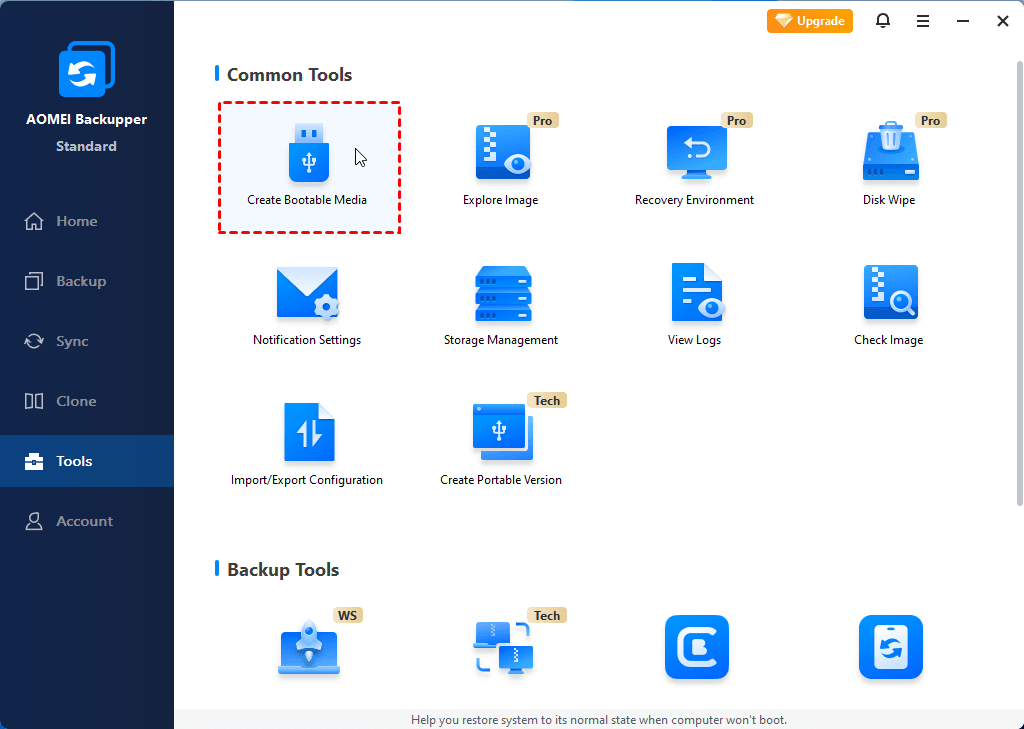
Official AOMEI illustration: Tools → Create Bootable Media. Review the selected USB carefully. Select the image to enlarge.
WinPE rescue media lets a compatible PC start AOMEI Backupper when Windows will not boot. It does not contain your backup automatically: keep a suitable backup image separately and confirm that the recovery environment can reach it.
Prepare the media
- Use an authorised working Windows PC with the appropriate Backupper version. Connect a spare empty USB stick or other supported media. Back up anything on the selected device before creating it.
- Open Tools → Create Bootable Media and follow the Windows PE workflow. Carefully identify the intended USB device or choose an ISO output.
- Follow the current environment/download prompts. If storage or networking needs additional drivers, use the vendor's Add Driver option with the correct driver files.
- Finish creation and label the media with its purpose and preparation date. Keep it available with the recovery instructions.
Test without starting a restore
Arrange a maintenance window and follow the computer manufacturer's boot-menu instructions. Start from the rescue media and check that Backupper opens, the intended internal disks are visible, and the external or network backup location is accessible. A successful boot alone does not prove the recovery path is ready. Exit without starting a restore, remove the media and return to normal Windows startup.
Before a real recovery
Confirm the correct computer, image, backup date and destination. Backupper System Restore requires a compatible AOMEI image; an unrelated Windows or third-party image is not interchangeable. Copy out newer essential files first: restoring a system/disk/partition image can overwrite the destination. Recovery to different hardware may require edition-specific functionality and a separate plan.
If a disk or network path is missing, stop and record the Backupper version, PC/storage model, boot mode and exact symptom. Send our Specialist a redacted screenshot. Do not initialise or format an unexpectedly missing disk.
Official references: Create bootable media · System Restore
Need a hand with your setup?
Tell our Support Specialist the exact model, version, symptom and checks already completed. Redact private information from screenshots.
Submit TicketUpdated 251223