
Frequently Asked Question
My Ricoh fi scanner disconnects on USB 3.0. Is there a supported USB 2.0 workaround?
QUICK ANSWER
Some fi models have a documented USB 2.0 operating-mode workaround for an unstable USB 3.0 connection. Check the exact model before changing its setting.
Applies to: Models covered by Ricoh's USB 3.0 instability guidance, including fi-8190, fi-8290, fi-8170, fi-8270 and selected other listed fi scanners.
Work through these checks
- Record the scanner model, Windows version and the point at which it disconnects. First test the supplied or specified cable directly at the computer, without a hub or extension.
- Update the supported scanner driver and check the computer manufacturer's USB/chipset updates. Compare another direct port or computer to separate a host connection issue from a scanner fault.
- If the model is covered, consult its operator guide for changing the USB connection mode to USB 2.0. Use that model's documented control; menu names and procedures differ across fi families.
- Repeat the same scan workload after the single mode change. Keep a record of the original setting so the test is reversible. Avoid registry changes or unrelated power-management changes while comparing results.
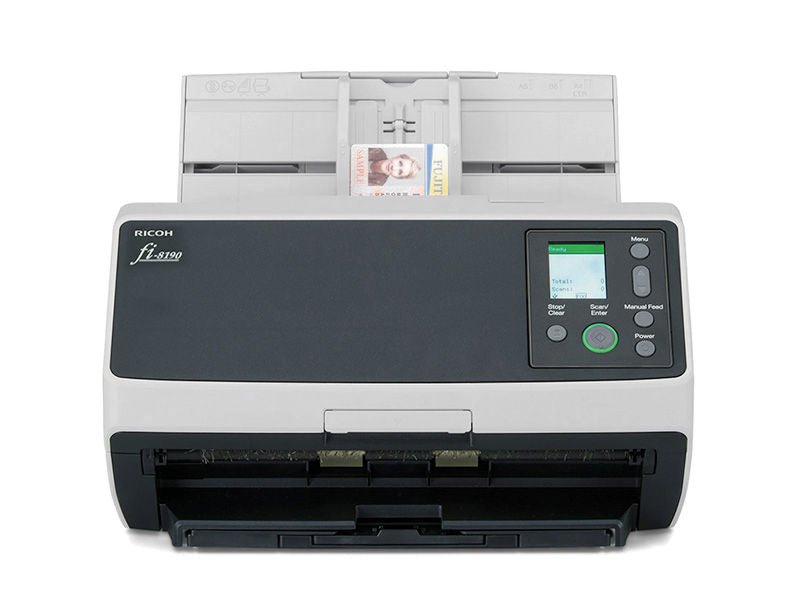
ACE catalogue photo: fi-8190. Apply cleaning, connection and profile instructions for your exact scanner model. Tap the image to enlarge.
Confirm the result
Complete several representative batches with no disconnect and check image/page completeness. Ricoh states that the supported workaround does not reduce scanning speed for the models covered by its guidance.
Before going further: Do not apply a setting or button sequence from a different fi model. Continued USB failures after a direct-cable comparison need assessment.
If you need help
Include these details in your ticket: Exact model, driver/Windows version, cable/port path, error, original USB mode and whether the documented USB 2.0 comparison was stable.
Updated 261107