
Frequently Asked Question
Why do vertical lines or dots appear in scans from my Ricoh fi scanner?
QUICK ANSWER
Dirt on the ADF glass can create a line through many pages. Compare the digital image and the original document, then clean the model's scanning surfaces correctly before changing image settings.
Applies to: Ricoh/PFU fi-series ADF scanners with repeated lines or dots in captured images.
Work through these checks
- Inspect the original after scanning and view the digital file on another display. A mark only in the image is different from a physical scratch on the document; stop feeding valuable originals if they are being damaged.
- Compare front and back images using plain test paper. A repeated mark in the same image position helps identify which scanning surface needs inspection.
- Shut down and unplug the scanner. Allow hot internal parts to cool as directed; Ricoh's guidance specifies approximately 15 minutes before cleaning. Follow the exact model's cleaning instructions with the approved cleaner and lint-free material.
- Clean the appropriate glass surfaces without spraying liquid into the scanner or scraping the glass. Reassemble correctly and repeat the plain-paper test. Image-cleanup options may reduce a symptom but do not remove physical contamination.
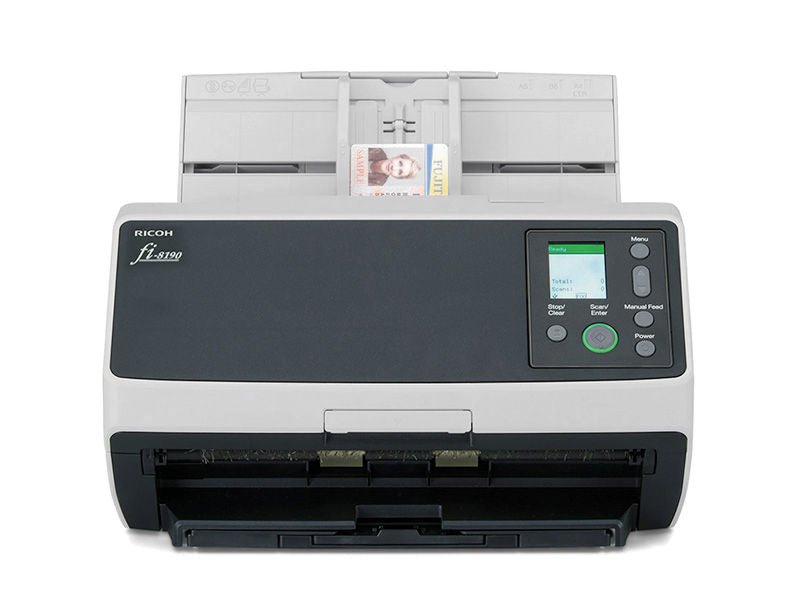
ACE catalogue photo: fi-8190. Apply cleaning, connection and profile instructions for your exact scanner model. Tap the image to enlarge.
Confirm the result
Check several front/back images at normal viewing size and zoomed in. The line should no longer recur at the same position, and originals should remain unmarked.
Before going further: Do not remove feed rollers, defeat protection sensors or continue scanning irreplaceable originals when physical damage occurs. Persistent marks need service assessment.
If you need help
Include these details in your ticket: Scanner model, affected side, redacted example image, whether the original is marked and the cleaning procedure/materials used.
Updated 261107