
Frequently Asked Question
My Ricoh fi scanner keeps jamming or feeding two sheets. What can I check?
QUICK ANSWER
Check document suitability, preparation, guides and the condition of feed components. Keep multifeed detection enabled while diagnosing unintended double feeds.
Applies to: Supported fi-series ADF scanners feeding documents within their model-specific limits.
Work through these checks
- Record whether the scanner reports a paper jam or multifeed and where it stops. Remove staples and clips, and separate unsuitable originals such as sticky, damaged or unsupported-thickness documents.
- Prepare a small batch of clean, flat, supported paper. Fan and align it, set the side guides to the document width without squeezing, and keep within the input-tray limit.
- Follow the operator guide to remove a jam without pulling against the mechanism. Inspect and clean the specified rollers and separation components, with power disconnected where the cleaning procedure requires it.
- Test the small uniform batch before mixed or difficult originals. Check consumable counters and replacement criteria against the exact model; do not assume a worn roller can be fixed through software sensitivity settings.
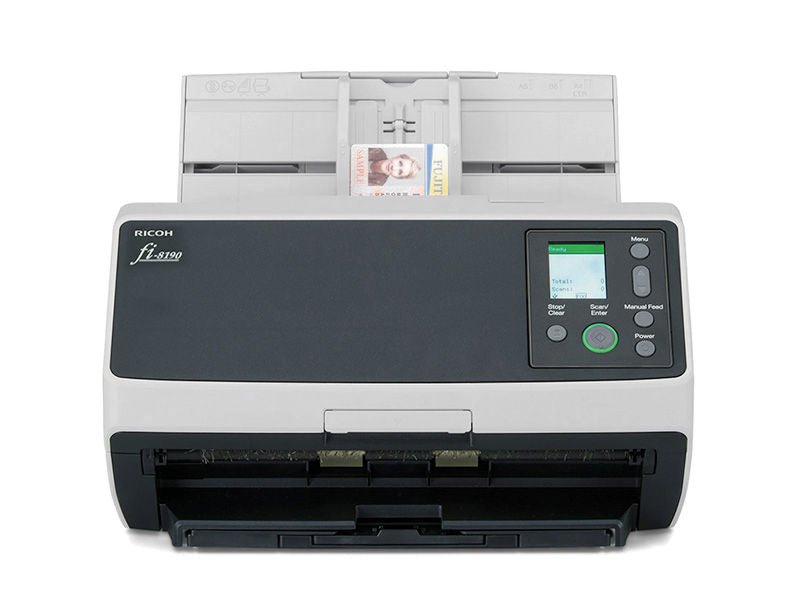
ACE catalogue photo: fi-8190. Apply cleaning, connection and profile instructions for your exact scanner model. Tap the image to enlarge.
Confirm the result
The full test batch should feed once per sheet with no missing or duplicated pages. Check the saved page count against the originals before returning to a larger job.
Before going further: Do not switch off protective detection or force fragile originals through repeated jams. Use the supported alternative handling method or arrange assessment.
If you need help
Include these details in your ticket: Scanner model, jam/multifeed message, paper type/size, batch size, roller-maintenance status and the plain-paper test result.
Updated 261107