
Frequently Asked Question
My Ricoh fi scanner appears in Windows but is missing from PaperStream. What should I check?
QUICK ANSWER
Check the scanner connection and the driver interface required by the scanning application. Windows detecting hardware does not prove that the correct PaperStream IP driver is installed or selected.
Applies to: Supported Ricoh/PFU fi-series scanners used with PaperStream Capture or another compatible Windows scanning application.
Work through these checks
- Record the scanner model, connection type and exact application. Check Device Manager for a warning and confirm the scanner is powered and ready, rather than assuming every missing-device message has the same cause.
- Confirm the supported PaperStream IP package for that scanner and Windows version is installed. Match the application's required TWAIN interface; a 64-bit Windows installation alone does not mean a 32-bit scanning application can use only a 64-bit driver.
- In the application's scanner/source selection, choose the intended fi model and driver. Close other scanning applications that may already hold the device, then restart the computer if the installation requires it.
- For USB, test a direct supported cable/port without a hub. For a network-capable model, check its configured connection and registration using that model's supported tools; a USB-only model cannot be discovered as a network scanner.
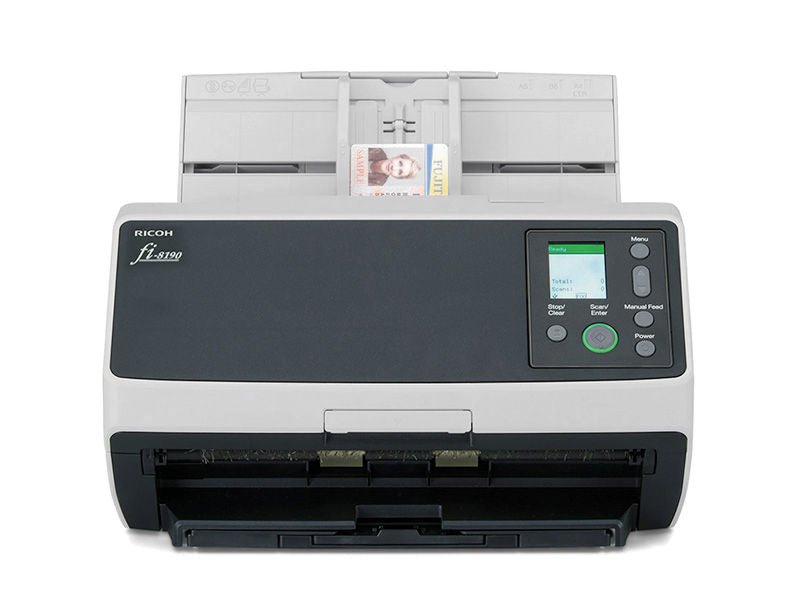
ACE catalogue photo: fi-8190. Apply cleaning, connection and profile instructions for your exact scanner model. Tap the image to enlarge.
Confirm the result
Select the correct source and scan a small test batch. Confirm both image capture and saving in the intended application, rather than stopping at Device Manager detection.
If you need help
Include these details in your ticket: Scanner model, USB/network connection, Windows and PaperStream versions, installed driver/interface and the exact source-selection error.
Updated 261107