
Frequently Asked Question
Why is my Zebra ZC300 card design cropped or off-centre?
QUICK ANSWER
Compare the artwork size, orientation and driver layout before adjusting print offsets. An application scaling error and a printer alignment issue need different fixes.
Applies to: Zebra ZC300 card layouts printed from compatible card-design software or a Windows application.
Work through these checks
- Confirm that the design uses the printer's supported card format and intended portrait/landscape orientation. Check both the document page setup and the active printer preferences.
- Preview the complete design and remove unintended fit-to-page or application margins. Keep critical text and barcodes safely inside the printable design area rather than depending on a thin border at the card edge.
- Print one simple centred test pattern and, separately, the printer's own test card. If only one application's design shifts, review that application's layout before changing printer settings.
- Where the driver supports X/Y offsets or image-fill controls, record the original values and make one small documented adjustment. Stop if adjustment would move printing beyond the card edge or cause ribbon problems.
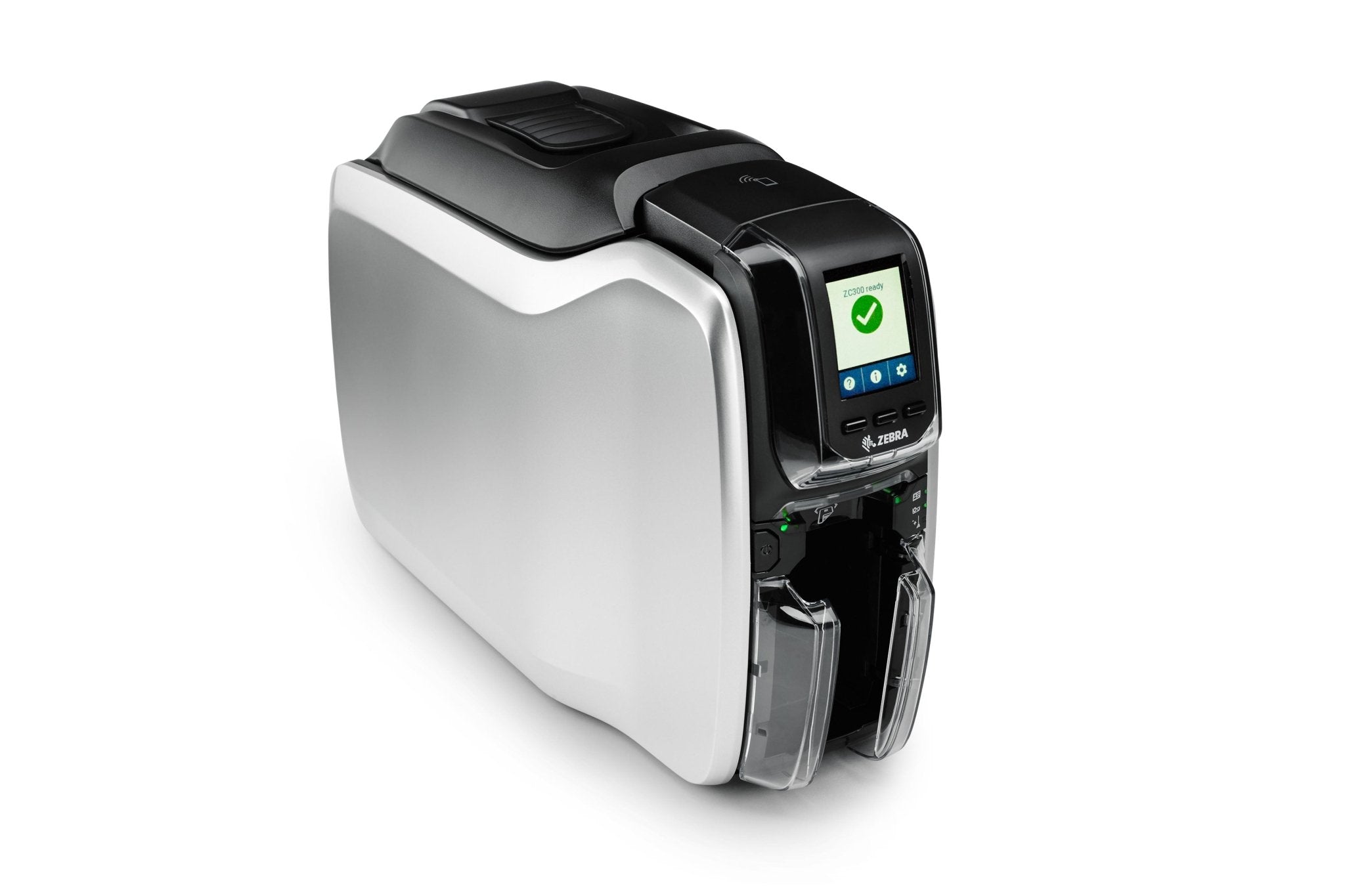
ACE catalogue photo: ZC300 card printer. Card stock, ribbon and cleaning procedures must match the printer. Tap the image to enlarge.
Confirm the result
Check the position on several cards, including front/back alignment for a supported dual-sided setup. Confirm that all text and barcodes remain complete before printing the batch.
Before going further: Do not compensate for a recurring mechanical shift with large offsets. Never change internal sensor positions to correct an application layout.
If you need help
Include these details in your ticket: Printer/driver version, design application, page orientation, redacted preview and test-card photos, and recorded offset values.
Updated 261107