
Frequently Asked Question
My Zebra ZC300 will not feed cards or reports a card jam. What should I check?
QUICK ANSWER
Check the stock, hopper loading and feed path using the ZC300's instructions. A full hopper can still fail to feed when cards stick together, are unsuitable or the rollers need cleaning.
Applies to: Zebra ZC300 card printers with feed errors, card-out indications despite loaded stock or card jams.
Work through these checks
- Stop the job and note the exact message and jam position. Remove the jam only through the access points and procedure described in the user guide; do not pull cards against a closed mechanism.
- Verify the card size, thickness and material are supported. Use a small stack of clean new cards, separate stuck cards and keep the stack within the hopper limit.
- Load the cards in the required orientation, including the specified stripe/chip direction where relevant. Inspect for bent cards, contamination, adhesive or previously damaged edges.
- Run the approved cleaning procedure if due and test one card using the supported feed method. Compare with another verified stock batch before returning to a large production run.
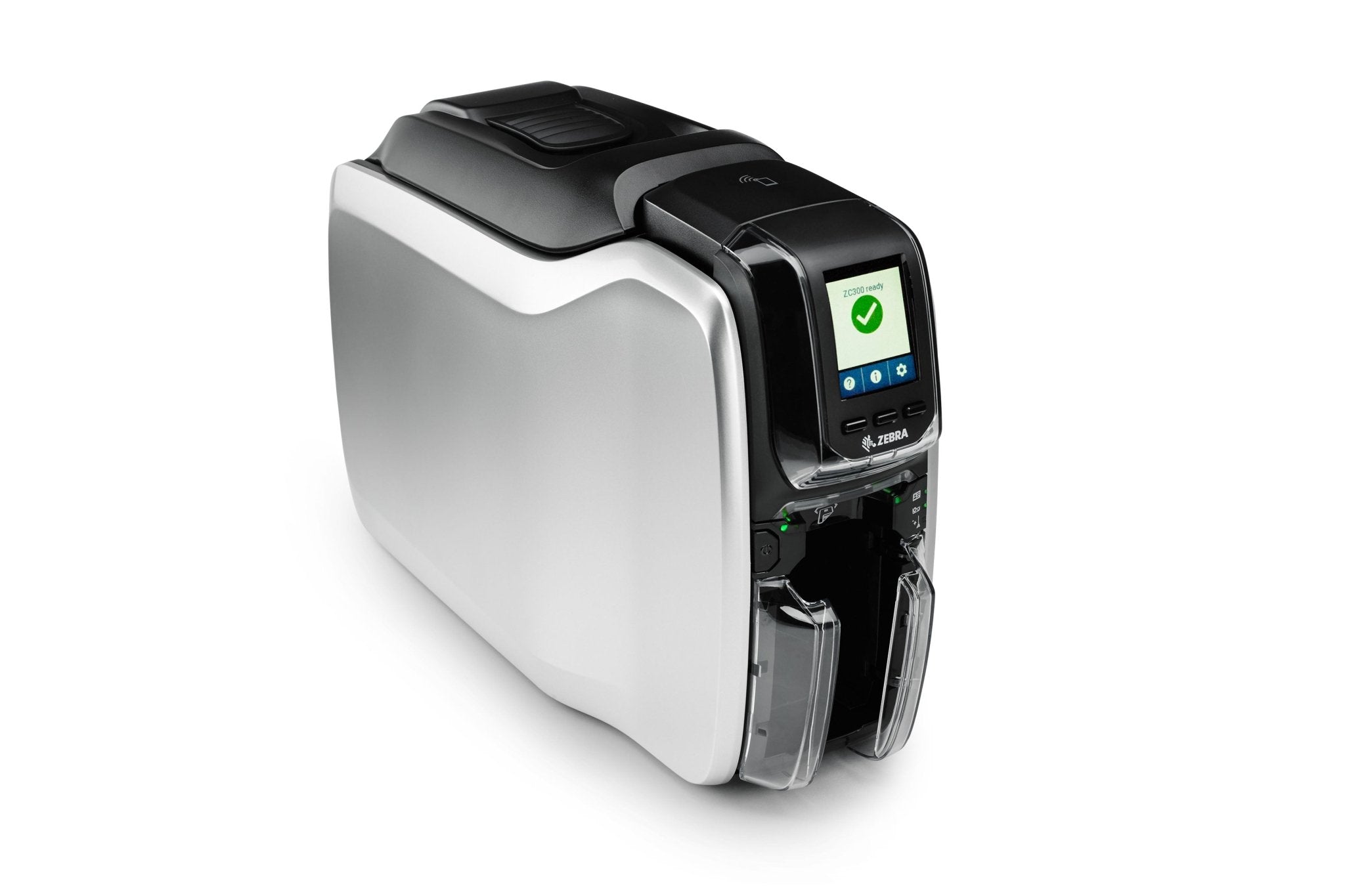
ACE catalogue photo: ZC300 card printer. Card stock, ribbon and cleaning procedures must match the printer. Tap the image to enlarge.
Confirm the result
Several test cards should feed individually, print and exit normally. Check that there are no double feeds, scratches or repeated jams at the same point.
Before going further: Do not force the feeder, lubricate rollers or adjust internal levers. Persistent feeding faults need service assessment.
If you need help
Include these details in your ticket: Printer model, message, jam location, stock size/thickness/material, loading orientation, cleaning history and results with another stock batch.
Updated 261107