
Frequently Asked Question
My Surface Pen is paired by Bluetooth but will not write. Why?
QUICK ANSWER
Bluetooth pairing mainly establishes supported shortcut features; it does not prove that the pen can ink on that screen. Check pen-to-Surface compatibility, power and touch/inking response separately.
Applies to: Surface Pen or Slim Pen used with a specifically compatible Surface. Surface Laptop Go models do not gain pen support through Bluetooth pairing.
Work through these checks
- Confirm the exact Surface and pen models are compatible. Do not assume that every touchscreen Surface, charging accessory or pen generation supports the same inking features.
- Check the pen's power using the appropriate replaceable battery or compatible charging accessory. Inspect that the correct tip is seated and undamaged; do not force a mismatched replacement tip.
- Test in a simple supported inking application, then test ordinary finger touch on the screen. Note whether only the shortcut button works, only one app fails or touch also fails.
- Install the appropriate Surface and Windows updates and restart. Compare with a known-compatible pen if available. Re-pairing alone will not solve a screen digitiser or compatibility problem.
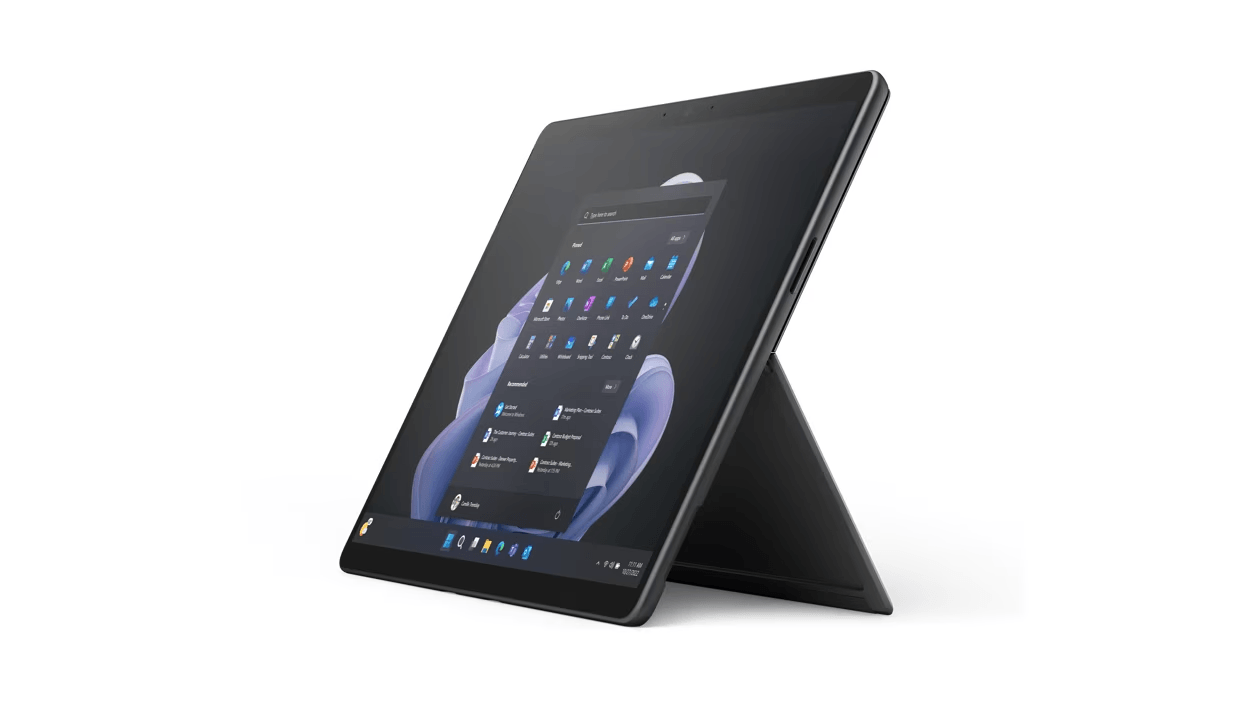
ACE catalogue photo: Surface Pro 9. Keyboard, charging and accessory support depend on the exact Surface model. Tap the image to enlarge.
Confirm the result
Draw continuous lines across several areas of the display and test the intended app. A working top button with no ink should remain recorded as a separate symptom.
Before going further: Do not replace the screen or reset Windows based only on Bluetooth status. A cracked screen or damaged pen needs assessment.
If you need help
Include these details in your ticket: Surface and pen model, power/charging method, touch response, apps tested and whether another compatible pen inks successfully.
Updated 261107