
Frequently Asked Question
My Surface Pro keyboard or Type Cover has stopped responding. What should I check?
QUICK ANSWER
Identify the keyboard and Surface model, then check the physical connection, updates and whether the keyboard works outside Windows. Pairing steps for a wireless keyboard do not apply to every Type Cover.
Applies to: Compatible detachable keyboards used with Surface Pro or Surface Go. Flex, Bluetooth and older Type Cover models have different procedures.
Work through these checks
- Confirm the keyboard is supported by the exact Surface model. Note whether both keyboard and touchpad fail, only some keys fail, or the problem occurs in one application.
- Shut down normally, disconnect accessories and detach the cover. Inspect the connector for debris or damage and gently clean it as specified for the device. Reattach it securely without bending the contacts.
- Use touch or another input device to install the Surface and Windows updates available for that model, then restart. Compare with a known-compatible keyboard if one is available.
- For a supported model, check keyboard response in Surface UEFI using Microsoft's model-specific entry procedure. A keyboard that works there but fails in Windows points towards software; no response there still requires checking the keyboard and connector.
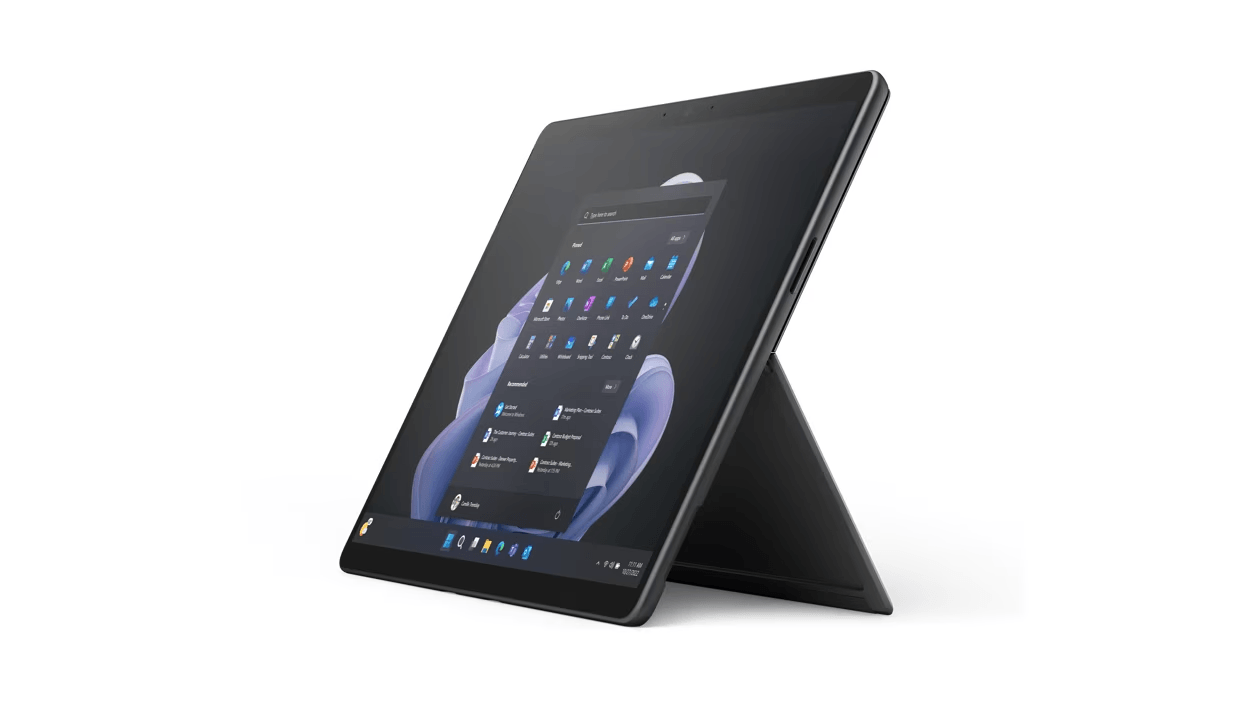
ACE catalogue photo: Surface Pro 9. Keyboard, charging and accessory support depend on the exact Surface model. Tap the image to enlarge.
Confirm the result
Test typing, the touchpad and sleep/wake behaviour in more than one application. Record which test changed the result rather than assuming an update fixed an intermittent fault.
Before going further: Do not reset Windows or uninstall multiple drivers before recording the tests. Liquid damage, bent contacts or connector damage needs assessment.
If you need help
Include these details in your ticket: Surface and keyboard model, Windows version, update status, affected keys/touchpad, UEFI result and any compatible-keyboard comparison.
Updated 261107