
Frequently Asked Question
Why is my external monitor not detected through a Surface USB-C port or Dock?
QUICK ANSWER
Confirm the Surface, dock, adapter and cable all support the required display connection. A USB-C plug can fit even when a cable only supports charging or basic data.
Applies to: Supported Surface models using USB-C display output, Surface Dock or Surface Dock 2.
Work through these checks
- Record the full connection chain and select the monitor's correct input. Confirm the Surface port and adapter support video, and use a display-capable cable with the required resolution/refresh-rate support.
- Start with one monitor connected directly where possible. Remove daisy chains, extra adapters and hubs for the comparison, then test another known-working cable or monitor input.
- In Windows, use Windows+P to select Extend or Duplicate. Open Settings, System, Display and use the available detect control if needed. Check whether Windows sees the monitor before changing resolutions.
- Install the model-appropriate Surface, graphics and dock updates. Reconnect the dock according to its instructions, then add the second display only after the first works. Check supported multi-display limits for the exact host/dock combination.
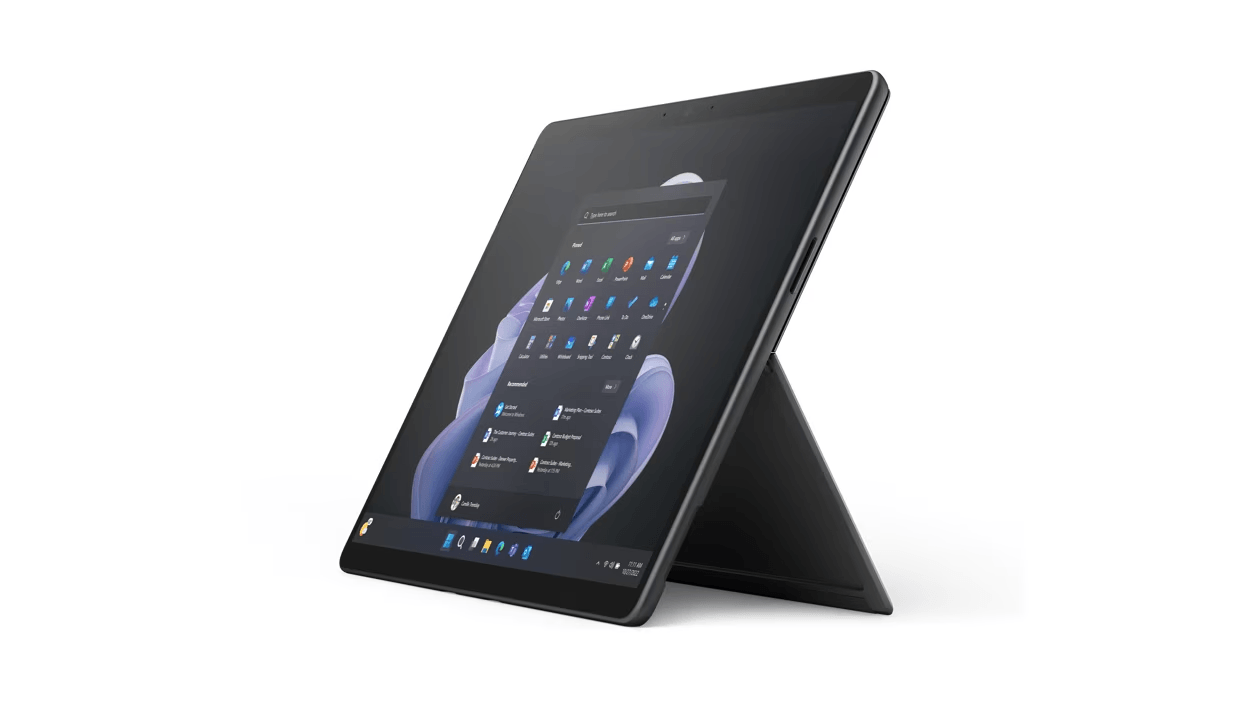
ACE catalogue photo: Surface Pro 9. Keyboard, charging and accessory support depend on the exact Surface model. Tap the image to enlarge.
Confirm the result
Confirm the monitor is detected at a supported resolution, then test wake and reconnection. Charging successfully through the same cable does not establish video capability.
If you need help
Include these details in your ticket: Surface/Dock models, Windows version, monitor model, every adapter/cable in the chain, selected input and the single-monitor/direct-connection result.
Updated 261107