
Frequently Asked Question
Windows does not recognise my Mercusys USB Wi-Fi adapter. How do I check its driver?
QUICK ANSWER
Match the driver to the adapter's exact model, hardware revision and Windows version. A device appearing in Device Manager with a driver warning needs a different check from a missing Wi-Fi network.
Applies to: Mercusys USB Wi-Fi adapters such as MW150US, MW300UM and MU6H on a supported Windows version.
Work through these checks
- Read the model and hardware-version label. Record the Windows version and system type. A package for another revision or an unsupported operating system may not install correctly.
- Connect the adapter directly to another USB port without a hub. In Device Manager, check Network adapters and Other devices for a new entry or warning, and record its exact status/error code.
- Obtain the matching manufacturer's driver using an existing wired connection or another computer. Some revisions include an installer on a virtual drive; follow that revision's supplied installation instructions.
- Install the correct package, restart if requested and recheck Device Manager. On a managed computer, ask its administrator to approve the driver rather than disabling security controls or installing an unknown driver utility.
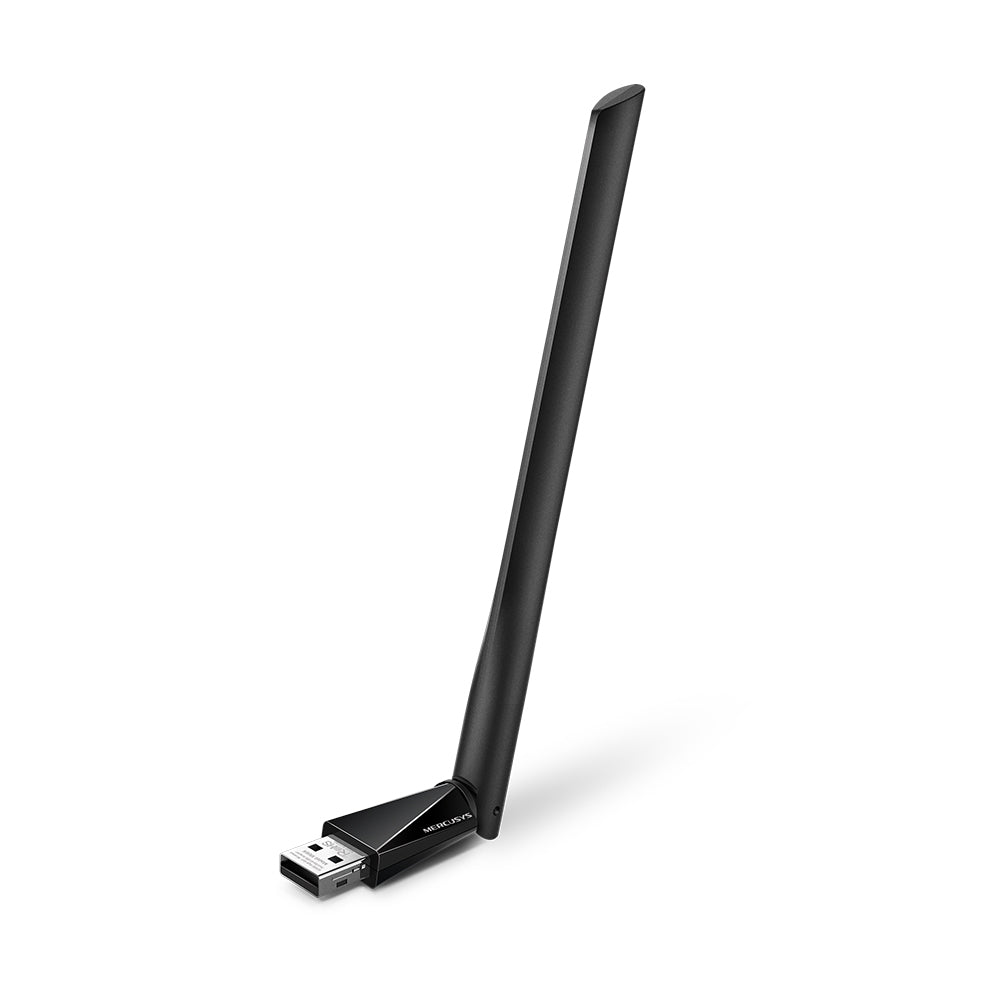
ACE catalogue photo: MU6H. This dual-band example differs from the 2.4 GHz-only MW150US and MW300UM. Tap the image to enlarge.
Confirm the result
The adapter should appear without a warning and offer compatible Wi-Fi networks. If it has no entry on two working computers, report that separately from a driver installation error.
If you need help
Include these details in your ticket: Model/hardware revision, Windows version and system type, Device Manager error code, driver package version and the direct-port test result.
Updated 261107